How to Download Facebook Videos on PC Without Software
Most guides about downloading Facebook videos focus on mobile phones. But what about people who spend most of their time on a laptop or desktop computer?
Maybe you want to save a video for a presentation. Maybe you want to edit it. Maybe you just want to watch it later without burning through your mobile data. Whatever the reason, downloading Facebook videos on a PC is just as easy as on a phone and you do not need to install any software at all.
No video downloaders to install, no browser extensions, no complicated settings. Just your browser and one simple website. In this guide, I will show you exactly how to download any Facebook video to your Windows PC or Mac laptop in just a few steps completely free.
What You Need
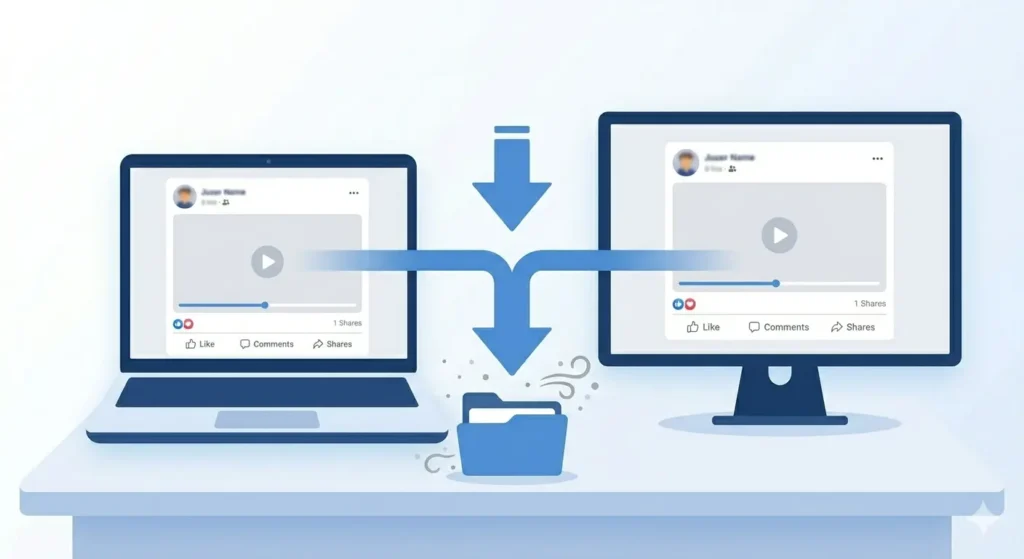
Before we start, here is everything you need:
-
A Windows PC or Mac laptop.
-
Any modern browser Chrome, Firefox, Edge, or Safari.
-
A stable internet connection.
-
The Facebook video link you want to download.
That is it. No downloads, no installations, and no accounts are needed on any downloader website.
Step by Step How to Download Facebook Videos on PC
Follow these simple steps and your video will be saved to your computer in under a minute.
Step 1: Open Facebook in Your Browser
On your PC or laptop, open your browser and go to facebook.com. Log into your account and find the video you want to download. Click on the video to open it fully. Make sure the video is playing properly before you copy the link.
Step 2: Copy the Video Link
This is the most important step. There are two ways to do this on PC:
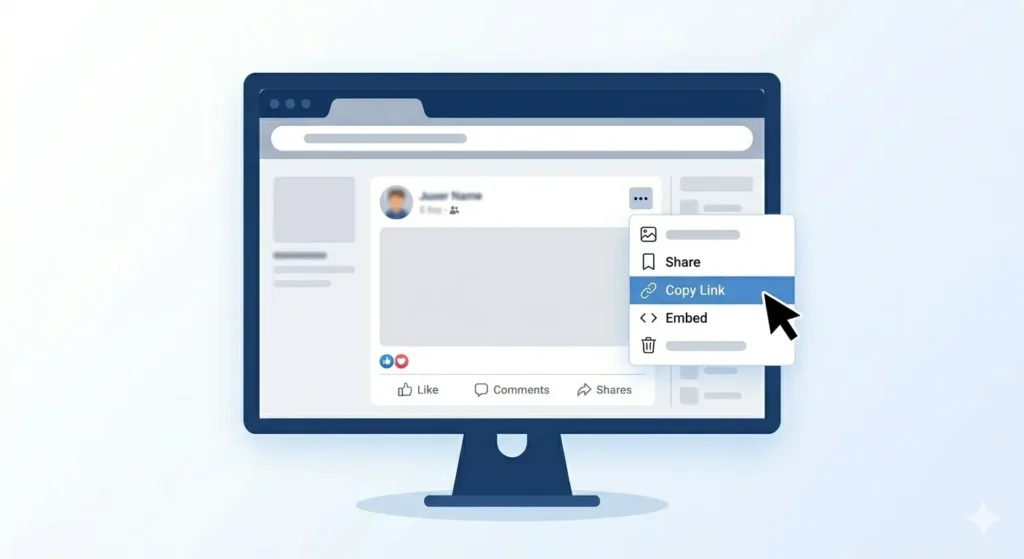
Method A From the Three Dots Menu (Recommended):
-
Click the three dots (…) icon on the top right of the video post.
-
A dropdown menu will appear.
-
Click Copy Link.
-
The link is now copied to your clipboard.
Method B: From the Browser Address Bar:
-
Click on the video to open it in full view.
-
Look at the browser address bar at the top.
-
Click on the URL and press Ctrl+A then Ctrl+C to copy it.
Note: Method A is more reliable and works better with video downloader tools.
Step 3: Open fdown.pk in Your Browser
Open a new browser tab and type fdown.pk in the address bar. Press Enter to open the website. You will see a clean, simple page with a large input box in the center.
Step 4: Paste the Link and Click Download
-
Click inside the input box on fdown.pk.
-
Press Ctrl+V (Windows) or Cmd+V (Mac) to paste the link.
-
Click the blue Download button.
-
Wait a few seconds while the site processes your video.
Step 5: Choose Quality and Save to Your PC
Click on HD Download for best quality or SD Download for a smaller file size.
If a new tab opens with the video playing:
-
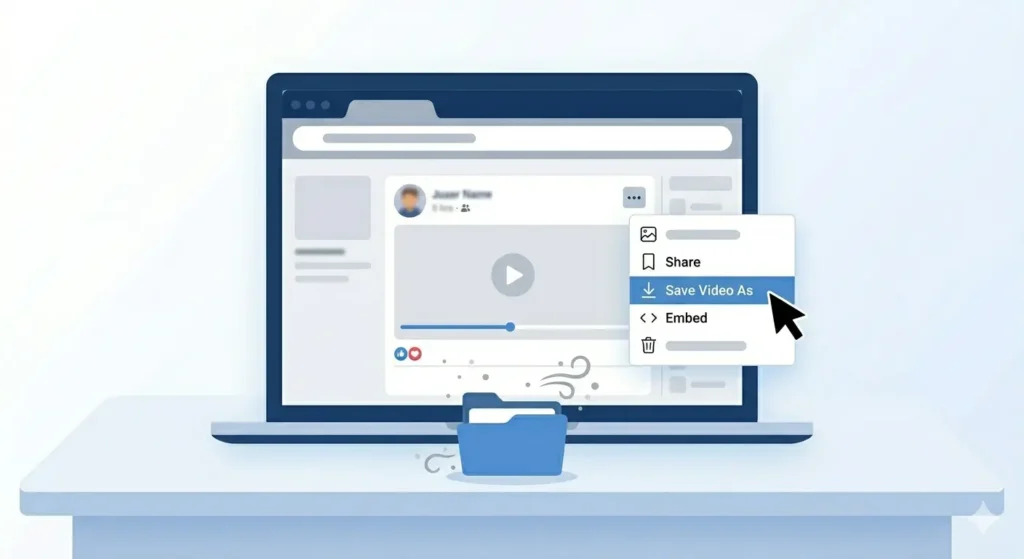
Right-click on the video.
-
Select “Save Video As…”
-
Choose your save location and click Save.
Where Do Downloaded Facebook Videos Go on PC?
By default, most browsers save downloaded files to the Downloads folder.
-
On Windows: Open File Explorer and click on Downloads in the left sidebar.
-
On Mac: Open Finder and click on Downloads in the sidebar.
Which Browser Works Best for Facebook Downloads?
Chrome is recommended for the most consistent experience.
HD or SD Which Should You Choose on PC?
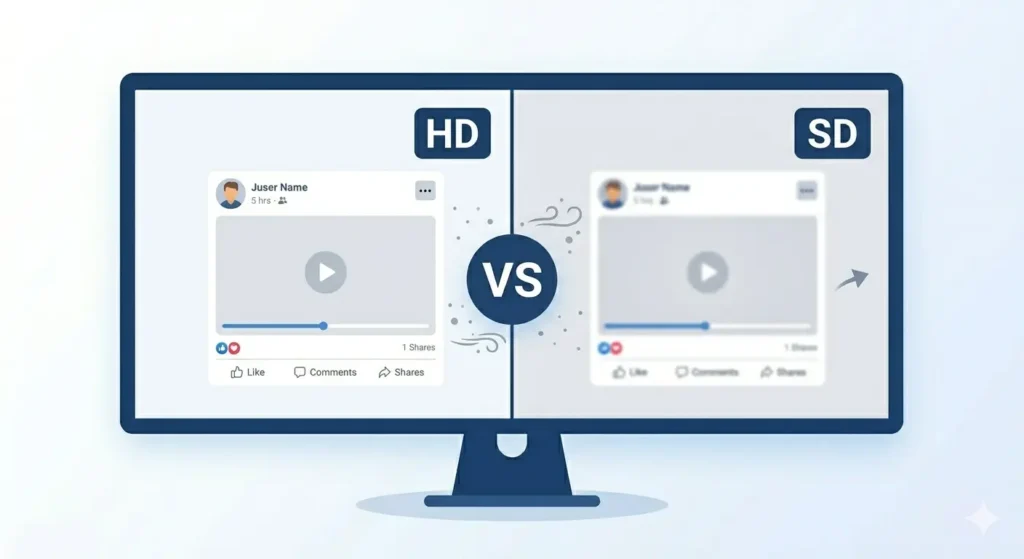
On a PC or laptop screen, the difference between HD and SD is much more noticeable than on a small phone screen.
-
HD: Always choose HD on PC if you plan to watch the video on your monitor or use it in a presentation.
-
SD: Choose SD only if you have very limited disk space or a slow connection.
Common Problems and Fixes for PC Downloads
-
Video Opens in New Tab: This is normal. Just right-click the video and select Save Video As.
-
Download Button Does Nothing: This is usually an ad blocker. Disable it temporarily and refresh fdown.pk.
-
fdown.pk Loading Slowly: Clear your browser cache (Ctrl+Shift+Delete) and try again.
Frequently Asked Questions
Do I need to install any software on my PC?
No. fdown.pk is a browser-based tool. It works instantly in Chrome, Firefox, Edge, or Safari without any installation.
What format are the downloaded videos?
Videos are saved as MP4 files, which are compatible with any media player on Windows or Mac.
Can I download multiple videos at once?
Yes. Simply open multiple tabs of fdown.pk, paste different links in each, and start the downloads simultaneously.
Final Thoughts
Downloading Facebook videos on a PC is genuinely simple once you know the right steps. Copy the link using the three dots menu, paste it on fdown.pk, and save it to your computer. The whole process takes less than a minute.
Head over to fdown.pk right now and give it a try your first download is just seconds away!