How to Download Facebook Videos on iPhone 15 and iPhone 16
The iPhone 15 and iPhone 16 are two of the most powerful smartphones ever made. They feature stunning displays, incredible cameras, and blazing-fast performance. But even with all that technology, Facebook still does not give you a built-in download button for videos.
Whether you have the iPhone 15, iPhone 15 Pro, iPhone 15 Pro Max, iPhone 16, iPhone 16 Plus, iPhone 16 Pro, or iPhone 16 Pro Max the process for downloading Facebook videos is exactly the same. And it is surprisingly simple.
No app installation needed. No jailbreak required. No complicated settings.
In this complete guide, I will walk you through exactly how to download any Facebook video on your iPhone 15 or iPhone 16 step by step, completely free, in under a minute.
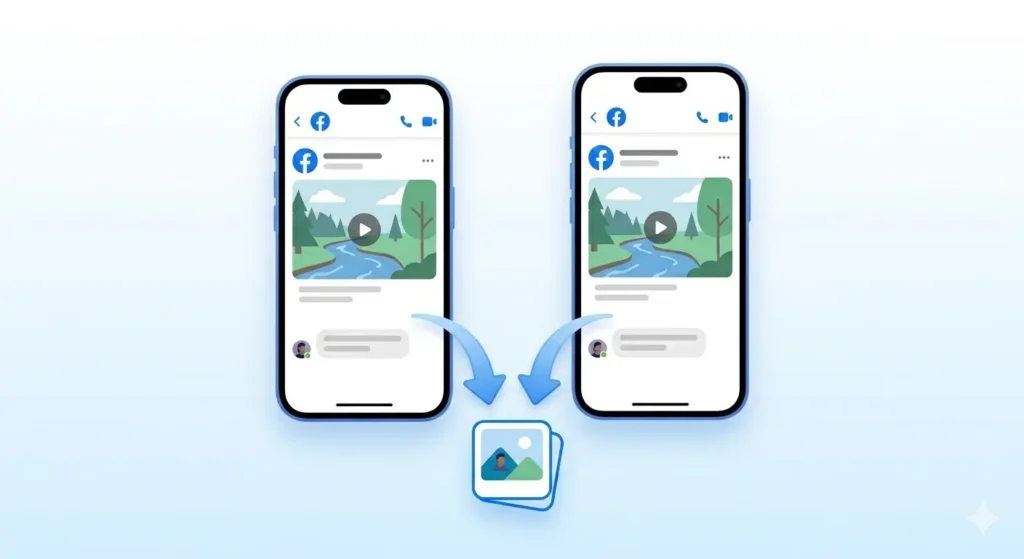
Works on All iPhone 15 and iPhone 16 Models
This method works perfectly on every model in these lineups:
-
iPhone 15 Series: iPhone 15, Plus, Pro, and Pro Max.
-
iPhone 16 Series: iPhone 16, Plus, Pro, and Pro Max.
-
Legacy Models: Also works on iPhone 14, 13, 12, and any iPhone running iOS 15 or above.
What You Need
Just these basics:
-
iPhone 15 or iPhone 16 (any model).
-
Safari browser built-in on every iPhone.
-
Internet connection WiFi recommended for HD files.
-
Facebook video link you want to download.
Step-by-Step How to Download Facebook Videos on iPhone
Step 1: Open Facebook and Find Your Video
Open the Facebook app on your iPhone. Find the video you want to save. Tap on the video to open it fully and confirm it is the correct clip.
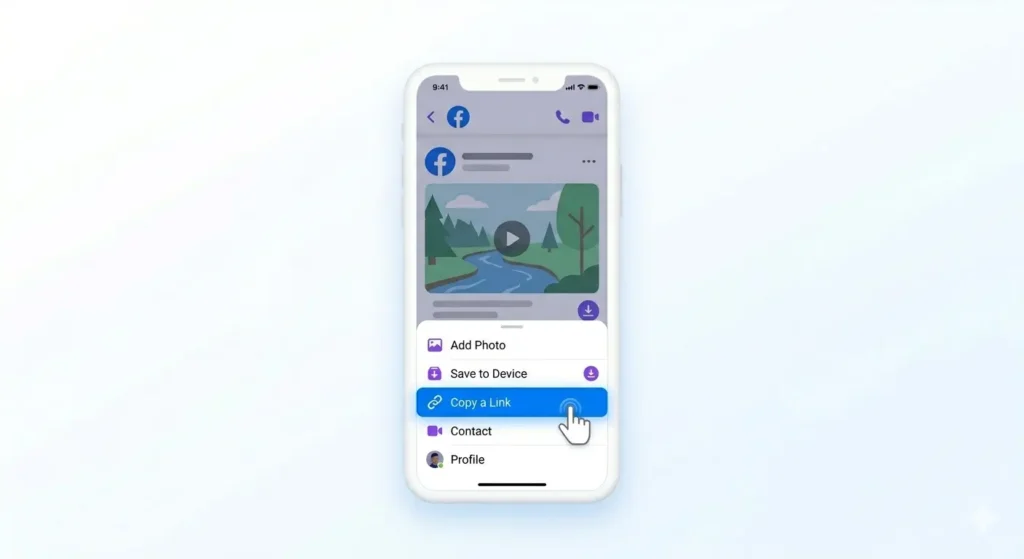
Step 2: Copy the Video Link
-
Tap the three dots (…) icon at the top right of the video post.
-
A menu will slide up from the bottom.
-
Tap Copy Link.
-
You will see a brief “Link copied” confirmation.
Step 3: Open Safari and Go to fdown.pk
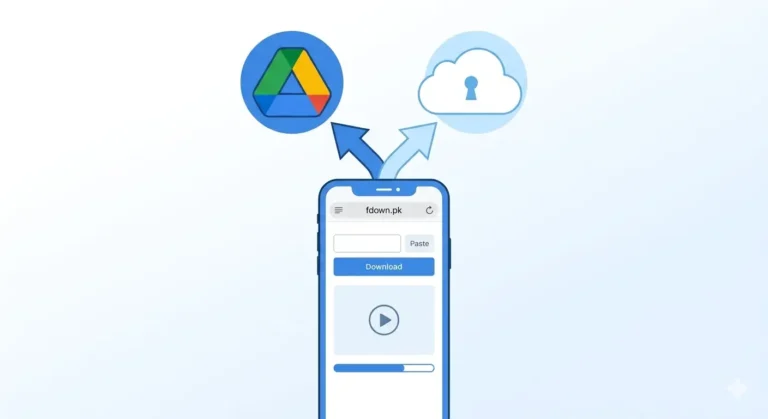
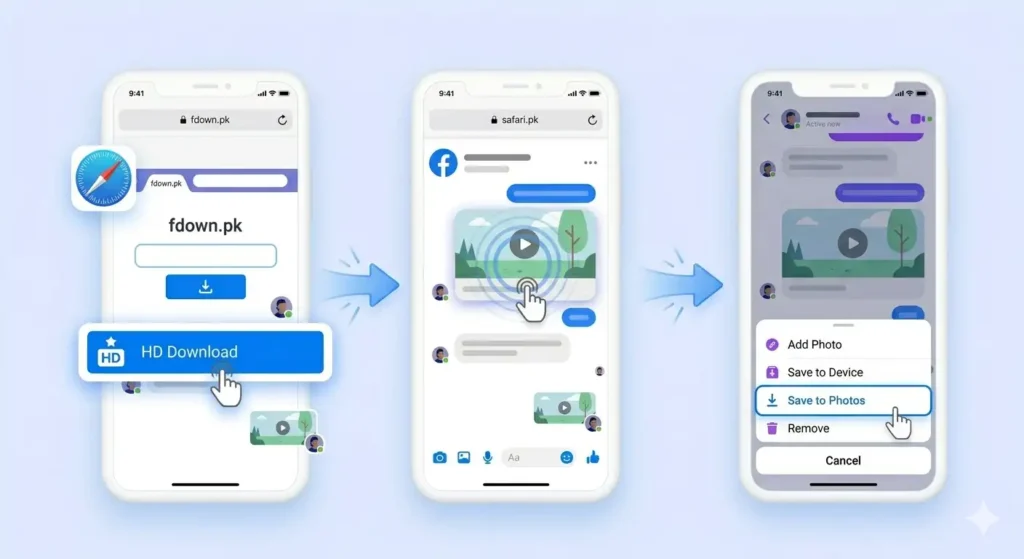
Open Safari (the default iPhone browser). In the address bar, type fdown.pk and tap Go.
Note: Safari is recommended over Chrome for iPhones because it handles “Save to Photos” permissions more reliably.
Step 4: Paste the Link and Process
-
Tap inside the input box on fdown.pk.
-
Long press until the paste option appears, then tap Paste.
-
Tap the blue Download button.
-
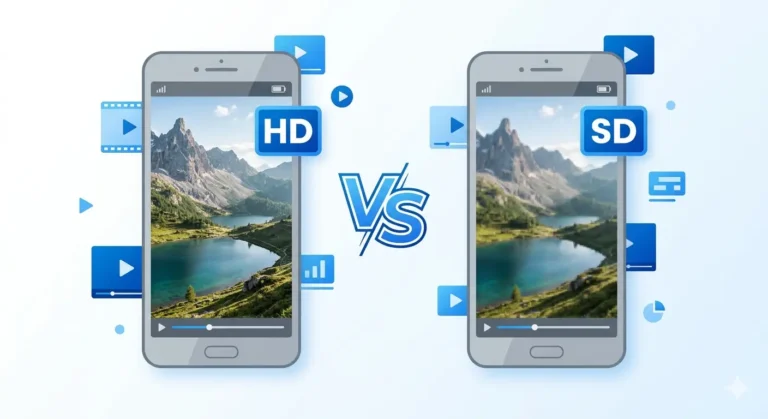
Once processed, choose HD Download (for the best quality on your XDR display).
Step 5: Save to Camera Roll
-
After tapping HD Download, the video will open in a new tab.
-
Long press on the video while it is playing.
-
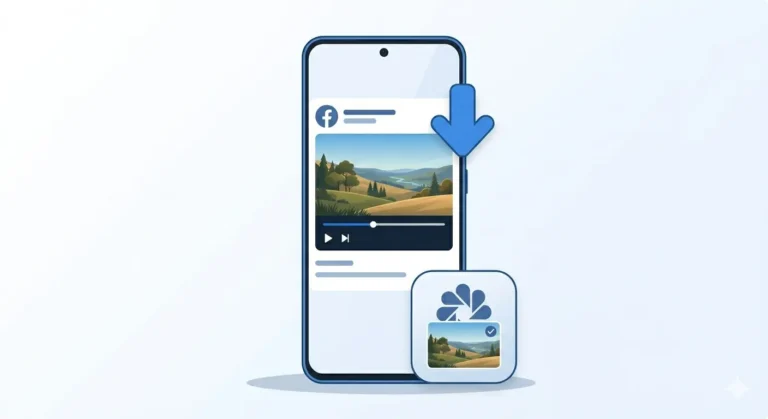
Tap Save to Photos from the menu that appears.
The video is now permanently saved in your Photos app under Recents.
New Features on iPhone 15/16 That Help With Downloads
-
Dynamic Island: On Pro models, you can see a subtle indicator when Safari is processing a download.
-
USB-C Port: Makes transferring your saved videos to a Mac or PC faster than ever.
-
Super Retina XDR Display: Always choose HD downloads. The screen quality on these phones makes standard definition (SD) look blurry by comparison.
Common Problems & Quick Fixes
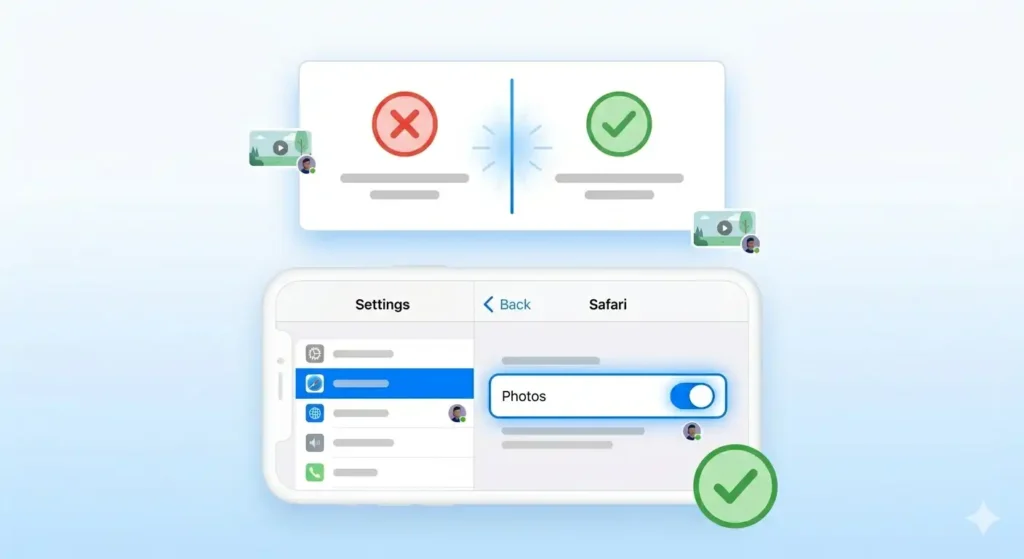
Problem: “Save to Photos” Not Appearing
The Fix: Go to Settings → Privacy & Security → Photos → Safari and make sure Safari has “Add Photos Only” or “Full Access” permission.
Problem: Video Opens but Long Press Fails
The Fix: Tap the video once to pause it first. Then try the long press. Alternatively, tap the Share icon at the bottom of the Safari browser and select Save Video.
Frequently Asked Questions
Is it free to download on iPhone 16?
Yes. fdown.pk is completely free with no hidden charges, regardless of your iPhone model.
Can I download Facebook Reels?
Yes. Use the same method. Copy the Reel link from the three dots menu and paste it into fdown.pk.
Where do the videos go?
They save directly to your Photos App → Library → Recents. If iCloud is enabled, they will sync to your iPad and Mac automatically.
Final Thoughts
The whole process takes under a minute. The stunning displays on the iPhone 15 and 16 series deserve high-quality content so always go for the HD Download option. Head to fdown.pk now and save your first video!