How to Save Facebook Videos to Google Drive or iCloud
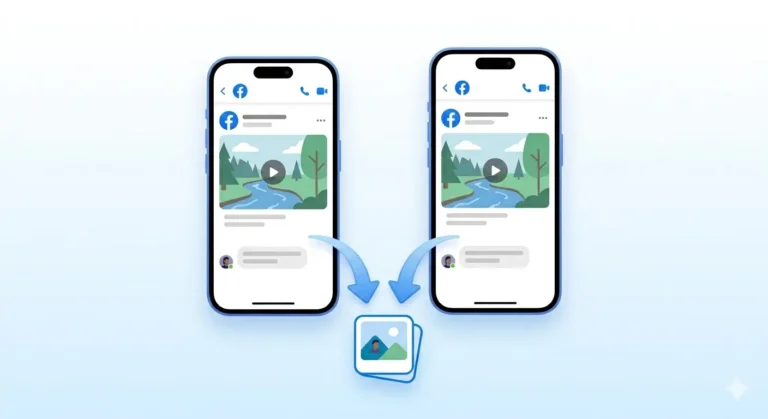
Saving a Facebook video to your phone gallery is great. But what happens when you change your phone, lose your device, or accidentally delete the file?
It is gone.
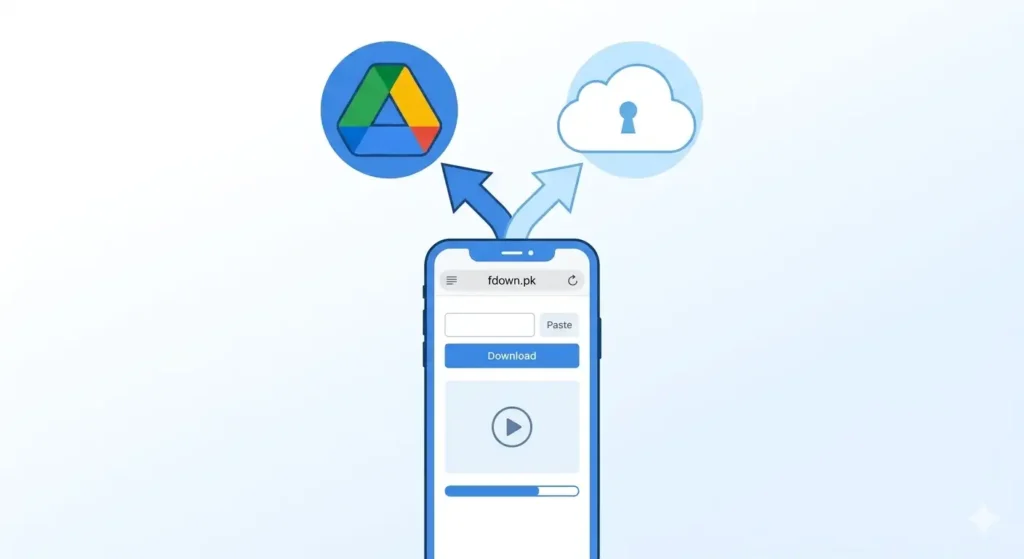
This is why saving Facebook videos directly to cloud storage Google Drive or iCloud is the smartest approach. Your video stays safe no matter what happens to your phone. You can access it from any device, share it easily, and never worry about losing it.
In this guide, I will show you exactly how to download any Facebook video and save it to Google Drive or iCloud on Android or iPhone completely free and without any complicated steps.
Why Save Facebook Videos to Cloud Storage?
Before we get into the steps, here are the main reasons why saving to the cloud is better than just saving to your phone gallery:
-
Never lose your videos Even if your phone breaks, is stolen, or is lost, your videos stay safe in the cloud.
-
Access from any device Watch your saved videos on any phone, tablet, or computer.
-
Free up phone storage Move videos to the cloud and delete them from your phone to save internal storage.
-
Easy sharing Share a Google Drive or iCloud link instead of sending a heavy video file.
-
Organized storage Create folders in Drive or iCloud to keep videos organized by topic or date.
Which Cloud Storage Should You Use?
Here is a simple guide to help you decide:
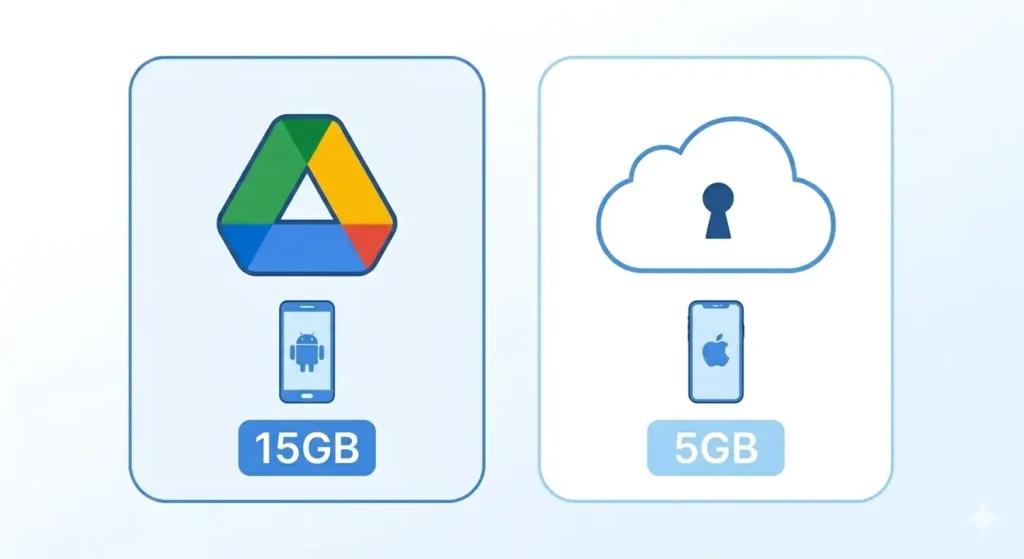
| Feature | Google Drive | iCloud |
| Best For | Android users & Gmail fans | iPhone, iPad, and Mac users |
| Free Storage | 15 GB | 5 GB |
| Sharing | Excellent via direct links | Seamless across Apple devices |
| Integration | Google Photos / Android OS | iOS Photos app / Files app |
Step 1: Download the Facebook Video First
Before you can save to any cloud storage, you need the video file on your device. Here is how:
-
Open Facebook and find the video you want to save.
-
Tap the three dots (…) menu on the video post.
-
Tap Copy Link.
-
Open your browser and go to fdown.pk.
-
Paste the link in the input box and tap Download.
-
Choose HD or SD based on your preference.
-
Save the video to your device.
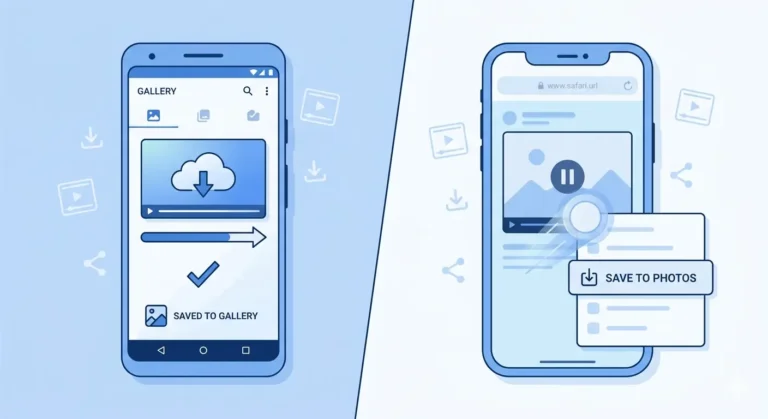
Note: On Android, the video saves to your Downloads folder. On iPhone, long-press the video in Safari and tap Save to Photos to add it to your Camera Roll.
How to Save Facebook Videos to Google Drive
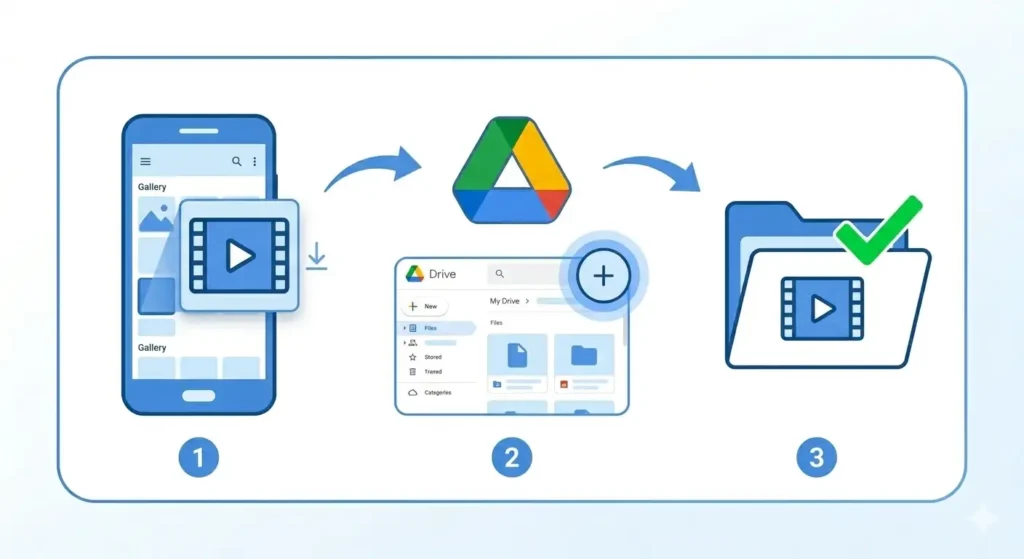
Google Drive gives you 15GB of free storage. Here is how to upload your video:
Method 1: Upload from Google Drive App
-
Open the Google Drive app.
-
Tap the plus (+) button at the bottom right.
-
Tap Upload and select your video from the Gallery or Downloads.
Method 2: Upload from Google Drive Website (PC)
-
Go to drive.google.com.
-
Click New > File Upload.
-
Select your Facebook video and click Open.
Method 3: Auto Backup (Android)
In the Google Photos app, go to Settings > Backup and enable the toggle. Any video downloaded to your device will automatically sync to your Google storage.
How to Save Facebook Videos to iCloud
iCloud is the native choice for iPhone users. Here are your options:
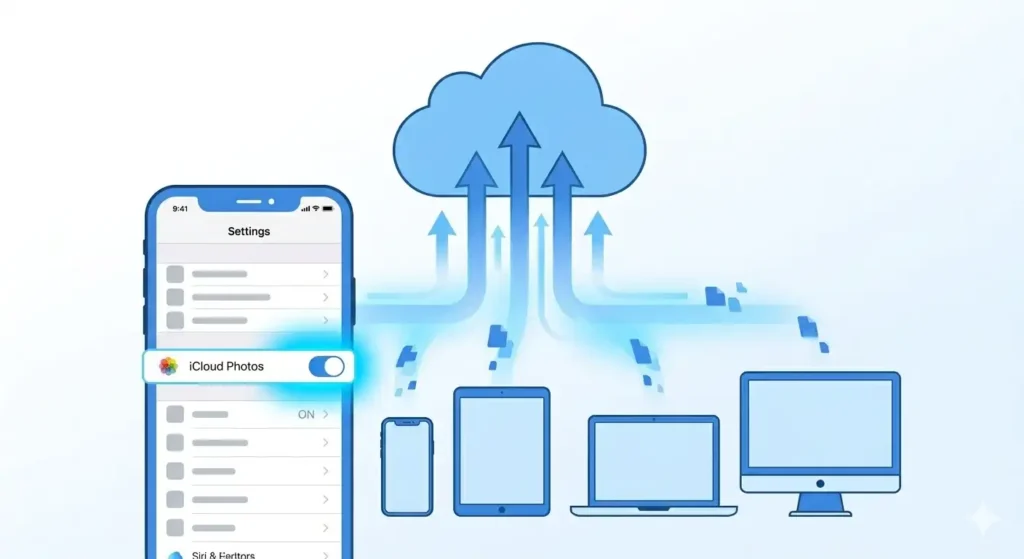
Method 1: Enable iCloud Photos (Automatic)
Go to Settings > [Your Name] > iCloud > Photos and enable iCloud Photos. Any video saved to your Camera Roll will automatically upload.
Method 2: Upload Manually to iCloud Drive
-
Open the Files app.
-
Go to iCloud Drive, tap the three dots (…), and select Import.
-
Choose the video file from your device.
Final Thoughts
Saving Facebook videos to Google Drive or iCloud is the smartest way to keep them safe permanently. Your phone gallery can fail cloud storage does not.
The process is simple: download the video with fdown.pk, then upload it to your preferred cloud service. It takes under two minutes, and your memories are safe forever!