How to Download Facebook Messenger Videos on Android and iPhone
Someone sent you a video on Facebook Messenger. Maybe it is a funny clip, a precious memory, an important tutorial, or a video from a loved one. You want to save it permanently to your phone gallery.
But here is the problem Facebook Messenger does not give you a simple save or download button for videos sent in chats. You can watch the video inside Messenger, but saving it to your gallery is a completely different story.
The good news is that saving Messenger videos is absolutely possible and it is free. You just need to know the right method for your device.
In this guide, I will show you exactly how to download and save any Facebook Messenger video on Android and iPhone step by step, completely free, without installing any extra app.
Why Saving Messenger Videos is Different
Before we get into the steps, it helps to understand why Messenger videos are slightly different from regular Facebook videos.
When a video is posted on a Facebook profile or page, it has a public or semi-public link you can copy. But videos sent inside Messenger chats are private messages they do not have a public link in the same way.
This means the standard “copy link and paste” method works differently for Messenger videos. There are specific steps you need to follow depending on your device.
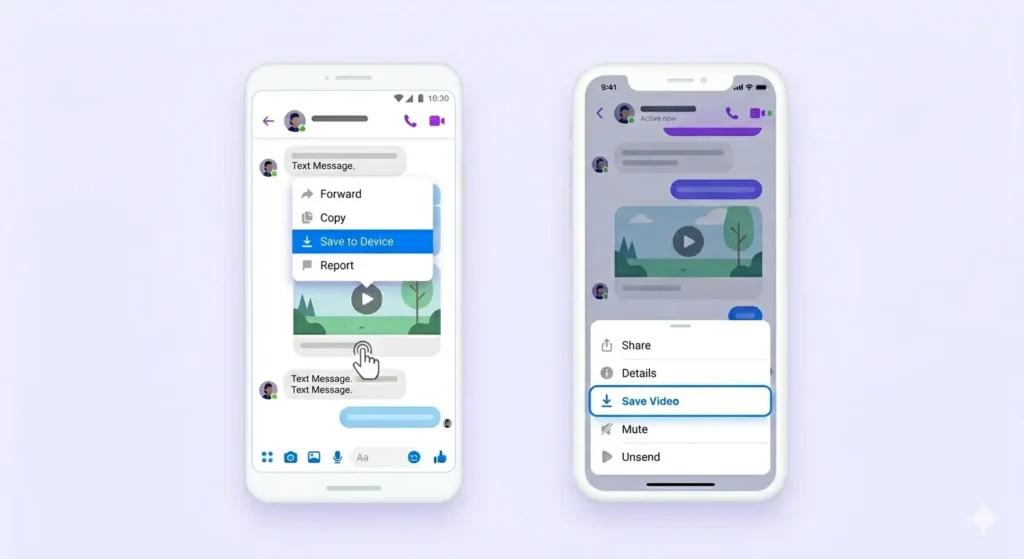
Method 1: Built-in Save Feature in Messenger (Easiest Method)
Before using any external tool, always try the built-in save option inside Messenger first.
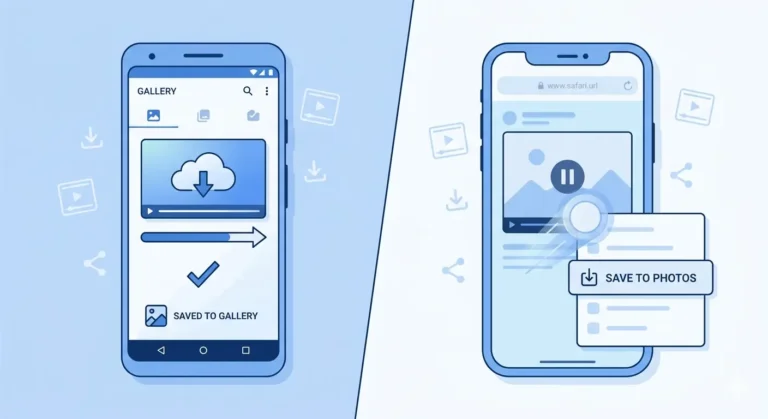
On Android Save Messenger Video Directly
-
Open the Facebook Messenger app.
-
Go to the chat where the video was sent.
-
Long press on the video message.
-
Look for Save, Save to Gallery, or Download.
-
Tap it.
On iPhone Save Messenger Video Directly
-
Open Facebook Messenger on your iPhone.
-
Go to the chat with the video.
-
Tap and hold on the video message.
-
A menu will pop up; look for the Save option.
-
Tap Save.
Method 2: Download Messenger Video Using fdown.pk
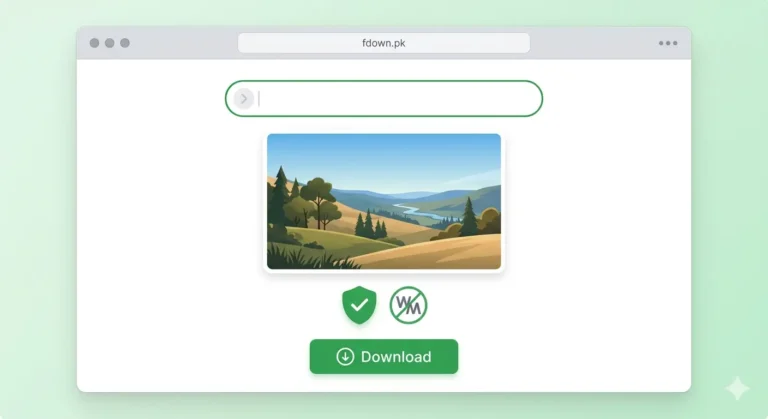
If the built-in option isn’t working, this method uses fdown.pk to download shared Facebook posts within Messenger.
-
Copy the Link: Tap the video to open it full screen. On Android, tap the three dots (…) or share icon and select Copy Link. On iPhone, tap the Share button and select Copy Link.
-
Visit fdown.pk: Open your browser (Chrome or Safari) and go to fdown.pk.
-
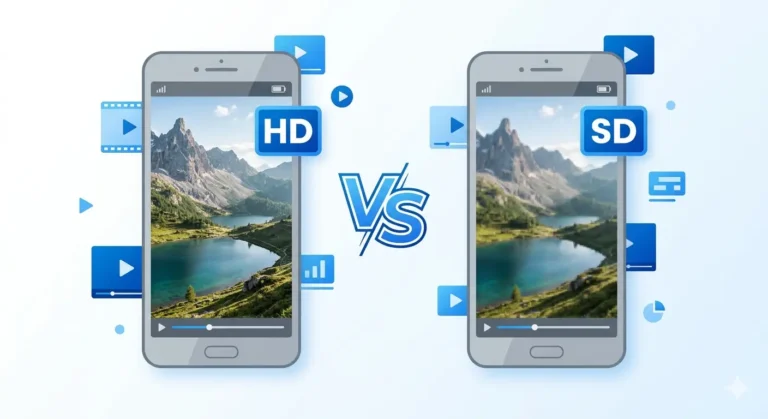
Download: Paste the link in the input box, tap Download, and choose HD Download.
Method 3: Screen Recording (Works for ALL Videos)
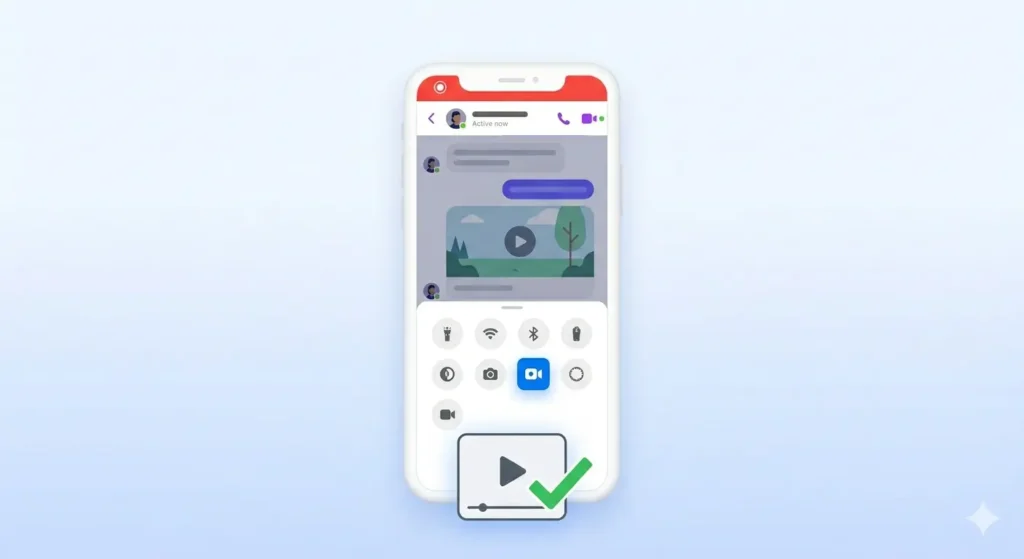
If no other method works, this is the guaranteed fallback. Every Messenger video can be captured using screen recording.
Screen Recording on Android
-
Open the video and pause it.
-
Pull down your notification panel and find the Screen Recorder tile.
-
Tap to start, play your video, and tap Stop once finished.
Screen Recording on iPhone
-
Open Control Center (swipe down from top right).
-
Tap the Screen Recording button (circle icon).
-
Play the video. When finished, tap the red recording indicator at the top to stop.
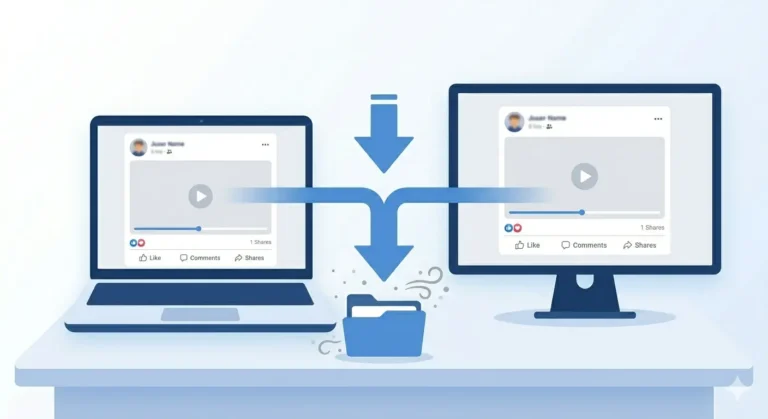
Method 4: Use Messenger on Desktop (PC/Mac)
Downloading Messenger videos on desktop is often the most straightforward approach.
-
Go to messenger.com and log in.
-
Navigate to your chat and open the video.
-
Right-click on the video while playing and select “Save Video As…” to download it directly to your computer.
Which Method Should You Use?
| Situation | Best Method |
| Video has a Save option in chat | Method 1: Built-in Save |
| Video shared from Facebook post | Method 2: fdown.pk |
| Direct video file upload in chat | Method 3: Screen Record |
| You are on a PC or laptop | Method 4: Desktop Download |
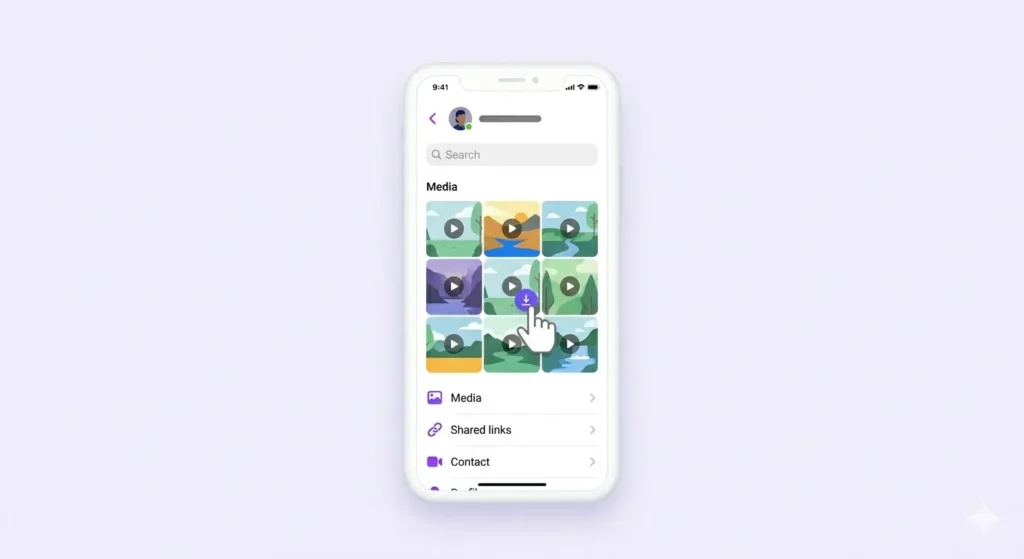
| Video sent long ago / hard to find | Find in Media section first |
Frequently Asked Questions
Will the sender know if I saved their video?
No. Messenger does not notify the sender when you save or download a video from a chat.
Does screen recording reduce quality?
If you record in HD, the quality is usually excellent. It captures the video exactly as it appears on your screen.
What if the video disappears?
If a sender unsends a message, the video is gone forever. This is why you should save important videos as soon as you receive them.
Final Thoughts
Saving Facebook Messenger videos is easy once you know which method to use. Start with the built-in Save option it’s the fastest. If that fails, screen recording is your “insurance policy” that works every time.
Next time someone sends you a video worth keeping, you’ll be ready to save it in seconds!