How to Download Facebook Stories Before They Disappear
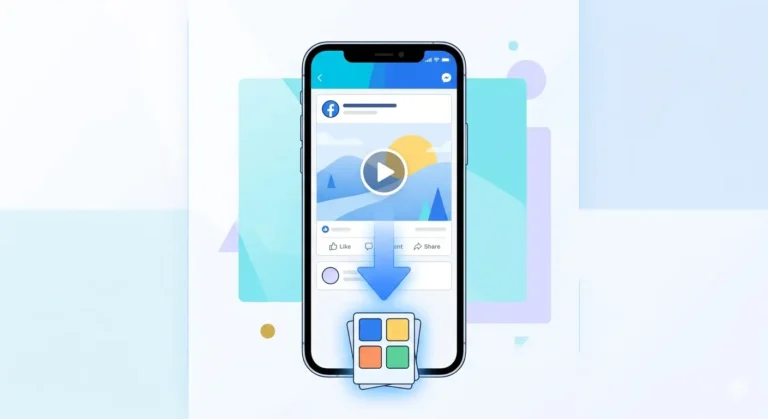
Facebook Stories are one of the most watched features on the platform right now. A funny moment, a special announcement, a behind the scenes clip, a memory shared by a friend and then just like that, it is gone in 24 hours.
Facebook designed Stories to be temporary on purpose. But that does not mean you have to lose them forever. Whether it is your own Story you want to keep, or a friend’s Story you want to save before it disappears, there is a simple free method to download it in seconds.
No app installation needed. No complicated steps. Just a browser and one easy tool.
In this guide I will show you exactly how to download Facebook Stories on Android, iPhone, and PC before they vanish after 24 hours.
Why Facebook Stories Disappear After 24 Hours
Before we get into the steps, let us quickly understand why Stories disappear and what happens to them after they are gone.
Facebook Stories are designed as temporary content. When you post a Story, Facebook automatically deletes it from public view after exactly 24 hours. This is by design Stories are meant to be in the moment content, not permanent posts.
However there is an important thing to know:
-
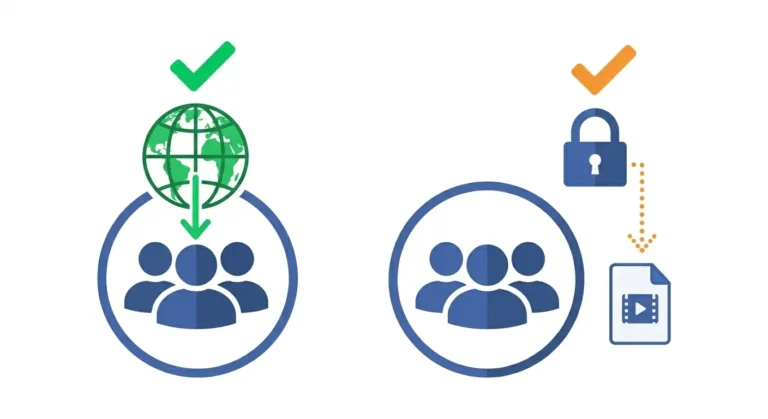
Your own Stories Facebook saves them privately in your Story Archive so you can still access them after 24 hours
-
Other people’s Stories Once they disappear, they are gone for you completely unless you saved them before the 24 hours was up
This is exactly why downloading a Story before it expires is so important if you want to keep it.
What Types of Facebook Stories Can You Download?
Before jumping into the steps, here is what you can and cannot download:
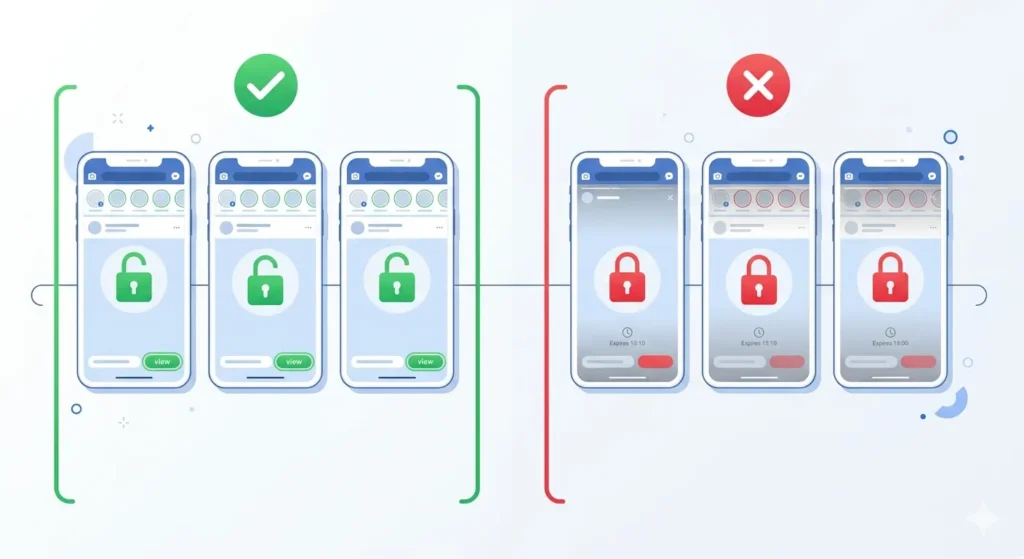
You CAN download:
-
Public Stories from any Facebook profile or page you can view
-
Stories from friends on your friend list that are set to Friends
-
Your own Stories at any time
You CANNOT download:
-
Stories set to Only Me by the uploader
-
Stories from private profiles you are not connected with
-
Stories that have already expired and been deleted
The rule is simple if you can see it on Facebook, you can download it.
How to Download Facebook Stories on Android
Follow these simple steps on your Android phone to save any Facebook Story before it disappears:
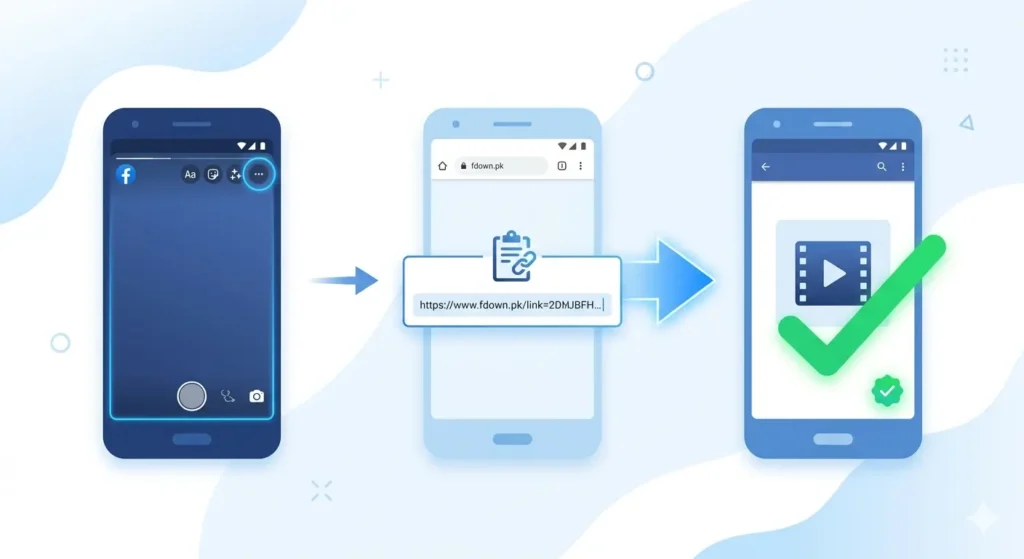
Step 1: Open the Facebook Story
Open your Facebook app and find the Story you want to download. Tap on it to open it in full screen view. Let the Story play fully so you can confirm it is the right one you want to save.
Step 2: Copy the Story Link
This step is slightly different from copying a regular video link. Here is how to do it:
-
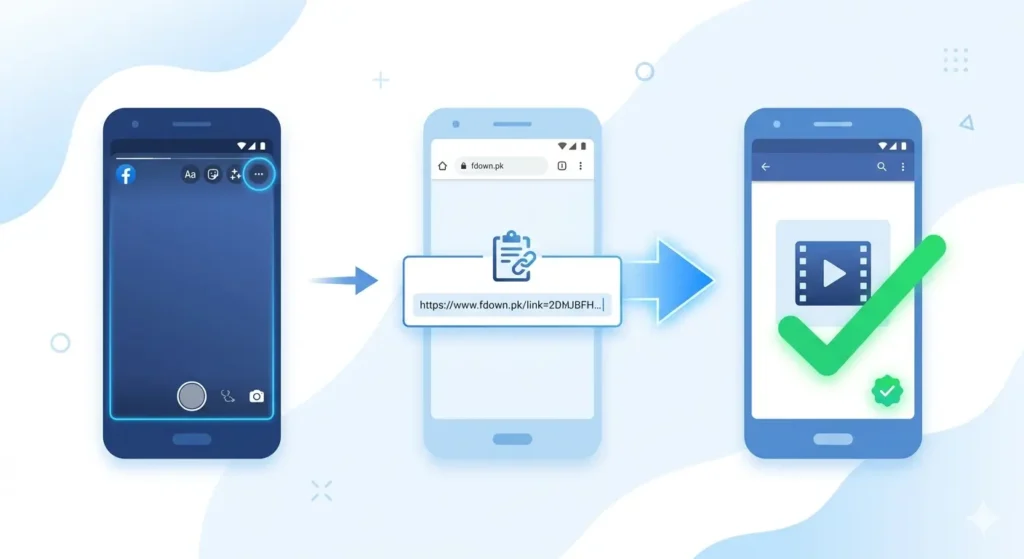
While the Story is playing, tap the three dots (…) icon at the bottom right or top right of the Story screen.
-
A menu will appear.
-
Tap Copy Link or Share then copy the link from there.
-
The Story link is now on your clipboard.
Alternative method on Android:
If you cannot find the copy link option directly on the Story, try this: Go to the person’s profile, find their active Story circle at the top, tap and hold on the Story circle, and select Copy Link.
Step 3: Open Chrome and Go to fdown.pk
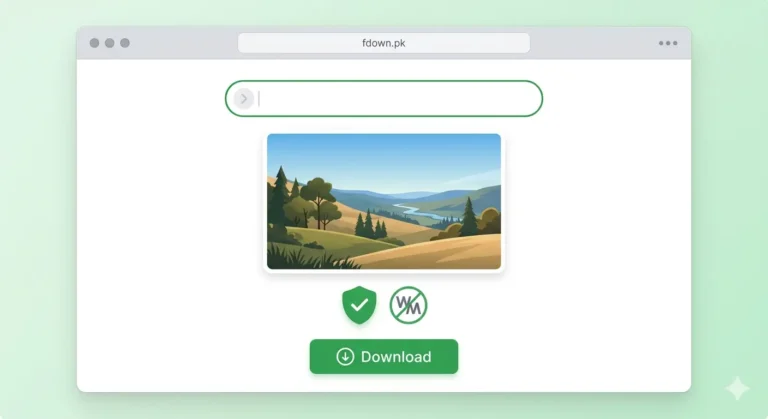
Open Chrome on your Android phone and go to: fdown.pk
You will see the familiar input box in the center of the page ready for your link.
Step 4: Paste and Download
-
Tap the input box.
-
Long press and tap Paste.
-
Tap the Download button.
-
Wait a few seconds for processing.
-
Download options will appear.
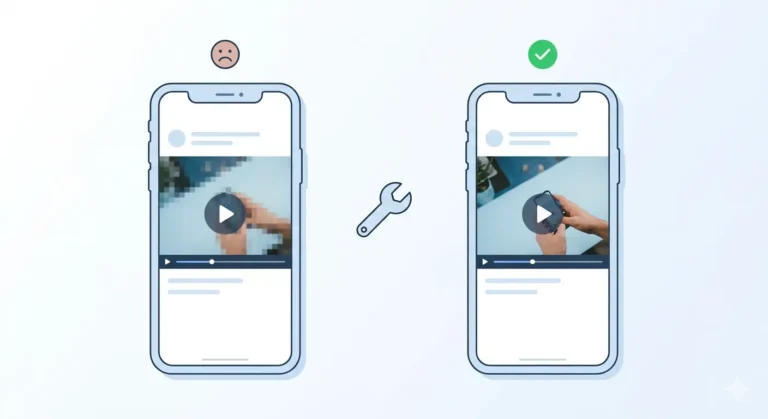
Tap HD Download to save the Story in the best available quality. It will save to your phone’s Downloads folder and Gallery.
How to Download Facebook Stories on iPhone
The process on iPhone follows the same logic with one difference in the final saving step:
Step 1: Open and Copy the Story Link
Open Facebook app on your iPhone, tap on the Story you want to save, and follow the same steps as Android:
-
Tap the three dots (…) on the Story screen.
-
Tap Copy Link.
-
Link is copied to your clipboard.
Step 2: Open Safari and Go to fdown.pk
On iPhone always use Safari for downloading videos it gives you the Save to Photos option which other browsers sometimes do not. Go to fdown.pk in Safari.
Step 3: Paste Download and Save to Photos
-
Tap the input box on fdown.pk.
-
Long press and tap Paste.
-
Tap Download.
-
When options appear tap HD Download.
-
The Story video will open in a new Safari tab.
-
Long press on the video while it is playing and tap Save to Photos.
The Facebook Story is now saved in your iPhone Camera Roll permanently even after the 24 hours expires on Facebook.
How to Download Facebook Stories on PC
Downloading Stories on a computer is the most straightforward method:
Step 1: Open Facebook and Find the Story
Go to facebook.com on your browser and find the Story you want to download. Click on it to open it in full screen.
Step 2: Copy the Story Link
-
Click the three dots (…) on the Story.
-
Click Copy Link.
OR right click on the Story video and see if a copy video URL option appears depending on your browser.
Step 3: Go to fdown.pk and Download
-
Open a new tab and go to fdown.pk.
-
Press Ctrl+V on Windows or Cmd+V on Mac to paste the link.
-
Click Download.
-
Choose HD Download.
-
The Story video will download to your computer’s Downloads folder as an MP4 file.
If the video opens in a new tab instead of downloading, right click on it and select Save Video As to save it to your computer.
How to Save Your Own Facebook Stories
If you want to save your own Stories there are actually two ways to do it — and one of them does not even require fdown.pk.
Method 1: Using Facebook Story Archive
Facebook automatically saves all your own Stories in a private archive even after they disappear from public view.
-
On Mobile: Tap your profile picture to open your own Story, tap the three dots (…), and tap Save to Camera Roll.
-
On Desktop: Click on your own Story, click the three dots (…) icon, and click Download.
Method 2: Enable Story Auto-Save
You can set Facebook to automatically save every Story you post directly to your phone gallery:
-
Open Facebook app.
-
Tap the three lines menu.
-
Go to Settings and Privacy → Settings.
-
Tap Stories.
-
Enable Save to Camera Roll or Auto-Save Stories.
Common Problems When Downloading Facebook Stories
Problem 1: Cannot Find Copy Link Option on Story
Try this workaround: Go to the person’s Facebook profile on desktop, click the active Story, and copy the URL directly from the browser address bar. Paste that into fdown.pk.
Problem 2: Story Already Expired
If the Story has already passed the 24 hour mark, it cannot be recovered. Always save Stories as soon as you see them.
Problem 3: Story Downloads as Image Instead of Video
If a Story is a static photo, it will download as a JPEG or PNG file. This is normal.
Problem 4: Save to Photos Not Appearing on iPhone
Go to iPhone Settings → Safari → Photos and make sure it is set to Allow.
How to Organize Saved Facebook Stories
-
Create a dedicated folder in your gallery called Saved Stories.
-
Rename files with the person’s name and date.
-
Back up saved Stories to Google Photos or iCloud so they are never lost.
Frequently Asked Questions
Can I download a Facebook Story after it expires?
No. Once a Story expires, it is gone from public access. The only exception is your own Stories in your private Archive.
Will the person know if I downloaded their Story?
No. Facebook does not notify creators about downloads from external tools. They will only see that you viewed the Story.
Can I download Facebook Stories for free?
Yes. fdown.pk is completely free with no registration or subscriptions required.
Do downloaded Facebook Stories expire on my phone?
No. Once saved to your gallery or computer, they stay there permanently.
Final Thoughts
Facebook Stories are meant to be temporary but that does not mean you have to let them disappear forever if they matter to you.
The key is to act fast once the 24 hours is up, the Story is gone. Next time you see a Story worth keeping, head straight to fdown.pk, paste the link, and save it to your phone or computer permanently.
Do not let another good Story disappear before you can save it.