Why is My Facebook Video Blurry After Downloading? (And How to Fix It)
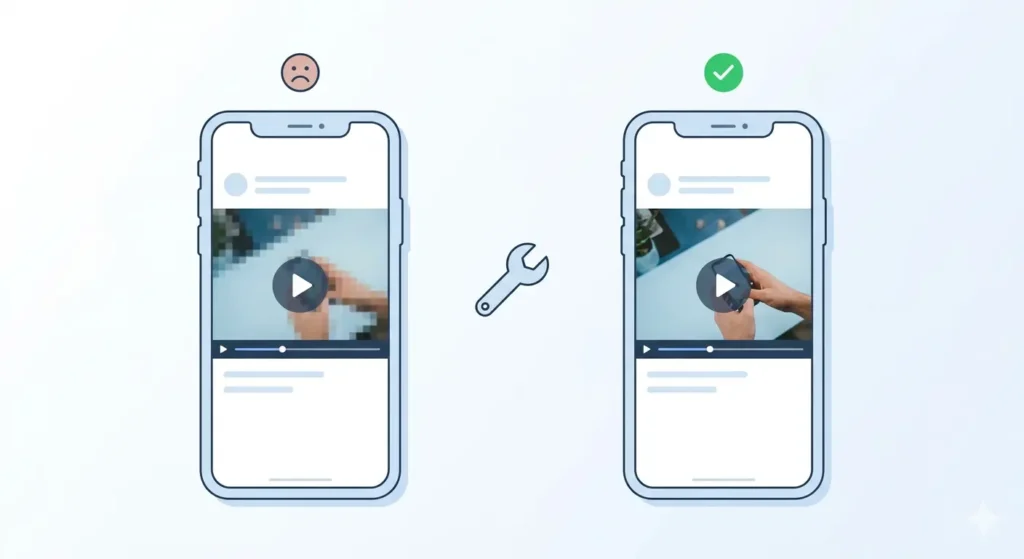
You downloaded a Facebook video. You are excited to watch it, you open the file and it looks terrible. Blurry, pixelated, soft, or low quality. Nothing like how it looked when you were watching it on Facebook.
This is one of the most frustrating experiences for anyone who downloads Facebook videos, and it happens more often than you would think. The good news is that in almost every case, the problem has a simple fix. You do not need any special software or technical knowledge to solve it.
In this guide, I will walk you through every possible reason why your downloaded Facebook video looks blurry and give you the exact fix for each situation on Android, iPhone, and PC.
Reason 1: You Downloaded the SD Version Instead of HD
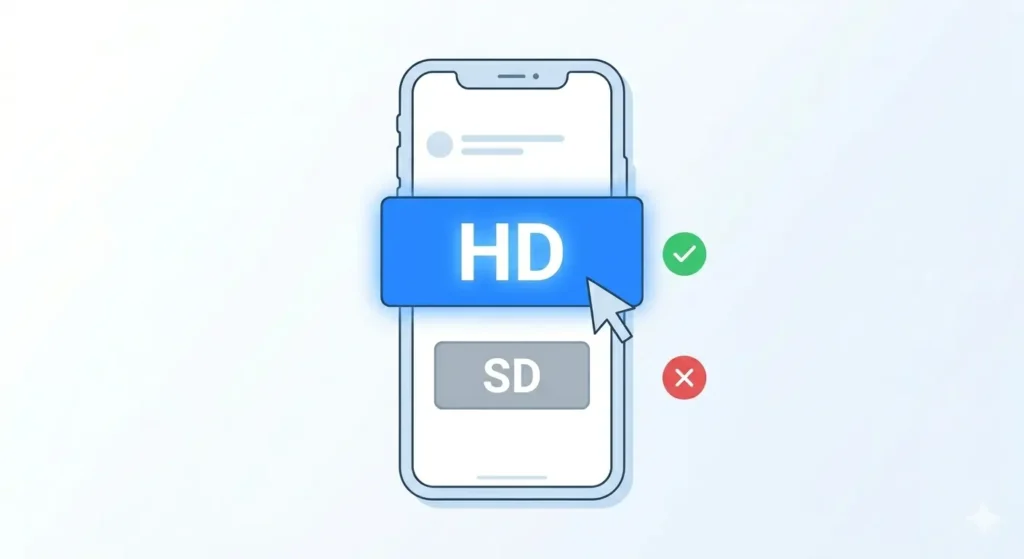
This is the most common reason by far. When you use fdown.pk or any other Facebook video downloader, you are usually given two quality options: HD and SD.
If you accidentally tapped or clicked SD Download instead of HD, your video will look noticeably softer and less sharp especially on larger screens. SD videos are compressed to a lower resolution (usually 360p or 480p). On a small phone screen, this might look acceptable, but on a laptop, tablet, or TV, it will look quite blurry.
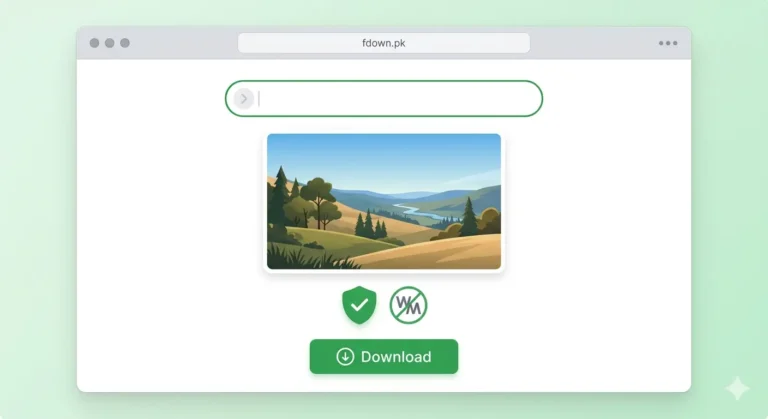
The Fix: Go back to the original Facebook video, copy the link again, paste it on fdown.pk, and this time specifically choose HD Download. The HD version will be noticeably sharper and clearer.
Reason 2: The Original Video Was Uploaded in Low Quality
Not all videos on Facebook are high quality. When someone records a video on an older phone, records in poor lighting, or uploads a heavily compressed file, the original video itself is low quality.
When you download that video even in HD you are getting the best version of a low-quality original. “HD” in this context just means the highest available version of whatever was uploaded; it doesn’t magically create detail that isn’t there.
How to check: Go back to the Facebook video and watch it on full screen in the Facebook app or browser. If it looks blurry while streaming on Facebook itself, the problem is with the original video, not your download.
The Fix: Unfortunately, there is no direct fix for this. If the source video is low quality, the downloaded version will be the same. You can try using a free AI video enhancement tool like Topaz Video AI or media.io enhancer to improve the quality slightly, but results vary.
Reason 3: Facebook Compressed the Video During Upload
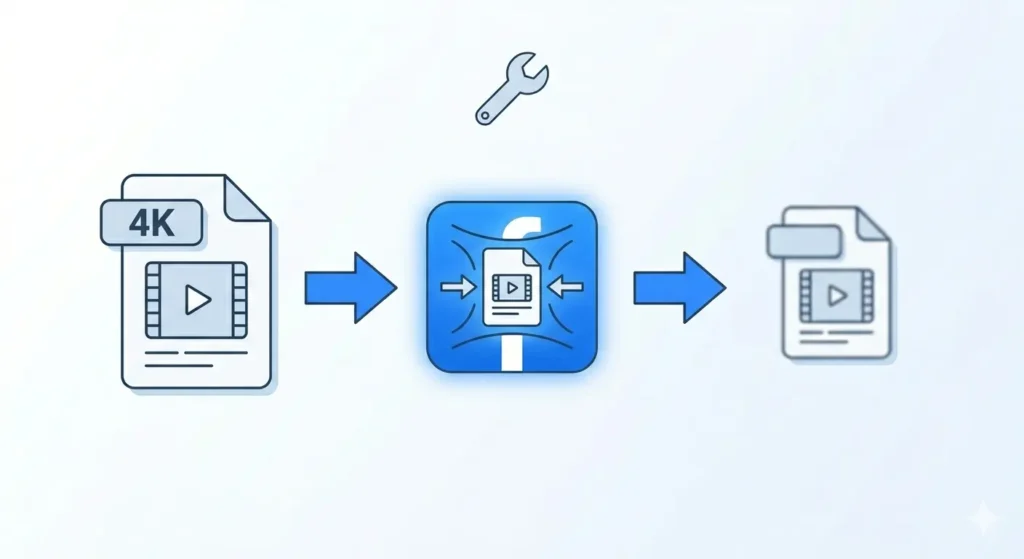
Facebook automatically compresses every video uploaded to its platform to manage storage. Even if the original video was recorded in 4K or 1080p, Facebook may compress it down to 720p or lower before storing it.
The video you see on Facebook (and what you download via fdown.pk) is always this compressed version.
The Fix: If you need the original uncompressed version, you must ask the original uploader to share the file directly with you (via Google Drive or WeTransfer). The platform version will always have some degree of compression.
Reason 4: Your Video Player is Scaling the Video
Sometimes the video file is fine, but your player is stretching it incorrectly. This happens if you play a 720p video on a 4K screen or if the player is set to “Stretch to Fill” instead of maintaining the original aspect ratio.
How to Fix:
-
On Android: Use VLC for Android. Tap the screen during playback and adjust the “Aspect Ratio” or “Fit Screen” settings.
-
On iPhone: Open the video in the Photos app and double-tap to toggle between “Fill” and “Fit” modes. Use “Fit” to see the true resolution.
-
On PC: Open the video in VLC Media Player. Go to Video → Zoom and select 1x for the sharpest display.
Reason 5: The Download Was Incomplete or Corrupted
A corrupted download can cause visual artifacts, freezing, or extreme blurring, especially in the second half of the video. This usually happens due to a dropped Wi-Fi connection or lack of storage space.
How to tell if your download is corrupted:
-
The video plays normally at first, then freezes or pixelates.
-
The file size is unusually small (e.g., only a few hundred KB).
-
The video shows green or black blocks during playback.
The Fix: Delete the corrupted file, ensure you have a stable connection and enough storage, and download it again from fdown.pk.
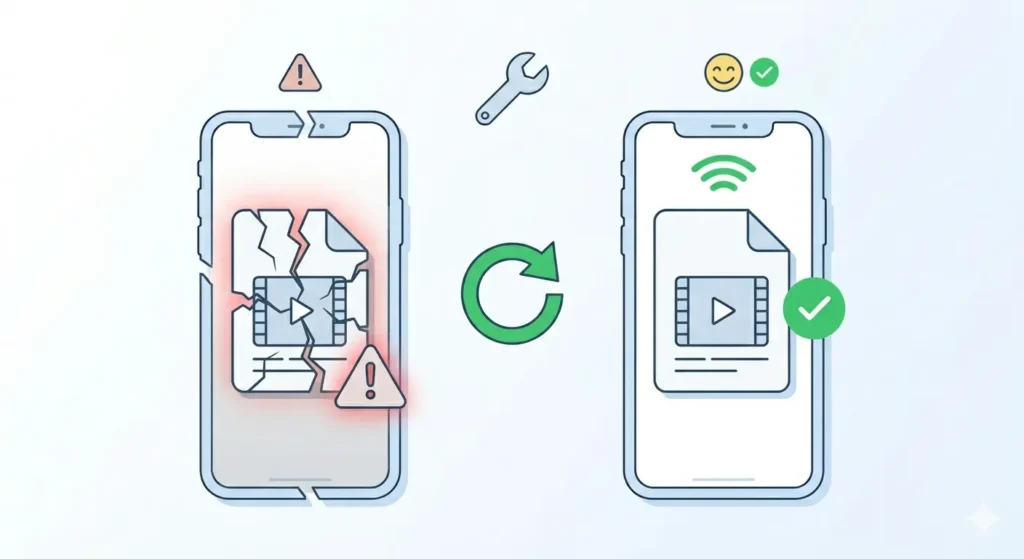
Quick Fix Summary: Which Solution Matches Your Problem?
If the original source is the problem, you can try these AI-powered tools to sharpen the footage:
-
media.io Video Enhancer: A web-based tool where you upload your video and let the AI upscale it automatically.
-
CapCut (Mobile): Import your video, go to Adjust, and increase the Sharpen and Clarity sliders.
-
Topaz Video AI (PC): The gold standard for upscaling. It can transform 480p or 720p footage into much cleaner 1080p.
Frequently Asked Questions
Why does the video look clear on Facebook but blurry after downloading?
This most often happens when the SD version was selected during the download process. Re-download using the HD option on fdown.pk.
Does fdown.pk reduce video quality?
No. fdown.pk acts as a bridge to provide the exact file stored on Facebook’s servers. It does not add any extra compression.
What is the best video player for these downloads?
VLC Media Player is the best option for all platforms. It handles MP4 codecs much better than default system players, often resulting in a clearer image.
Final Thoughts
A blurry Facebook download is almost always a result of selecting the wrong quality or Facebook’s own internal compression. Start by re-downloading the video in HD in 90% of cases, this solves the problem instantly.
Ready to get a clear version? Head back to fdown.pk and grab your video in HD now!