How to Download Facebook Videos Without Watermark: Free & Clean
If you have ever downloaded a Facebook video using certain apps or tools, you may have noticed something annoying the video has a watermark stamped on it. A logo, a website name, or some branding in the corner that was not in the original video.
Nobody wants that. Especially if you want to watch the video cleanly, share it with friends, or use it for any personal purpose.
The good news is that downloading a Facebook video without any watermark is completely possible and it is free. You just need to use the right tool. In this guide, I will show you exactly how to download any Facebook video in clean MP4 format with absolutely no watermark on Android, iPhone, and PC.
Why Do Some Facebook Video Downloads Have Watermarks?
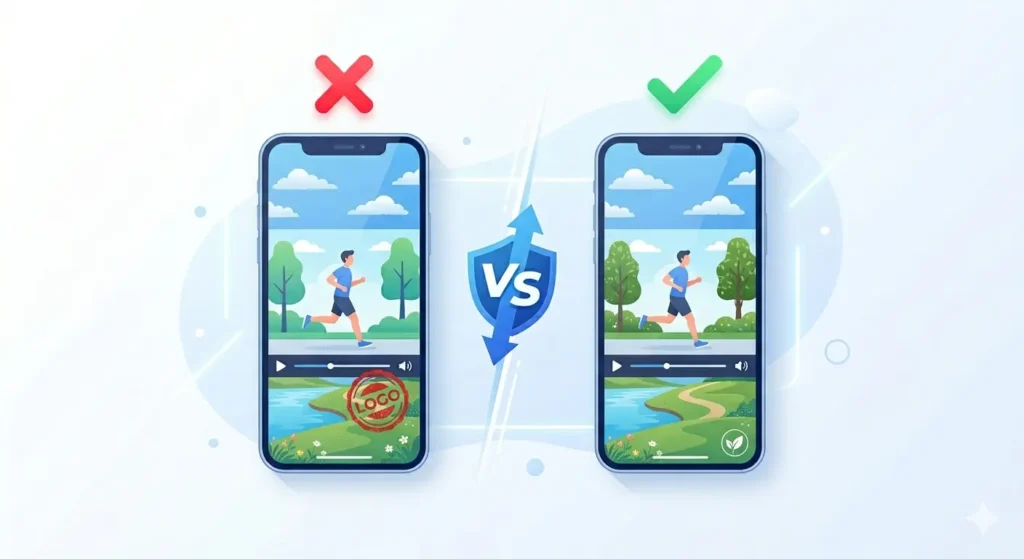
Watermarks on downloaded videos do NOT come from Facebook. Facebook videos themselves have no watermark.
Instead, watermarks come from the downloader tool you use. Many free apps and websites add their own logo as a way to advertise their service at the expense of your video quality. The solution is simple: use a downloader that provides the exact original file with zero modifications.
Does fdown.pk Add Watermarks to Downloaded Videos?
No absolutely not.
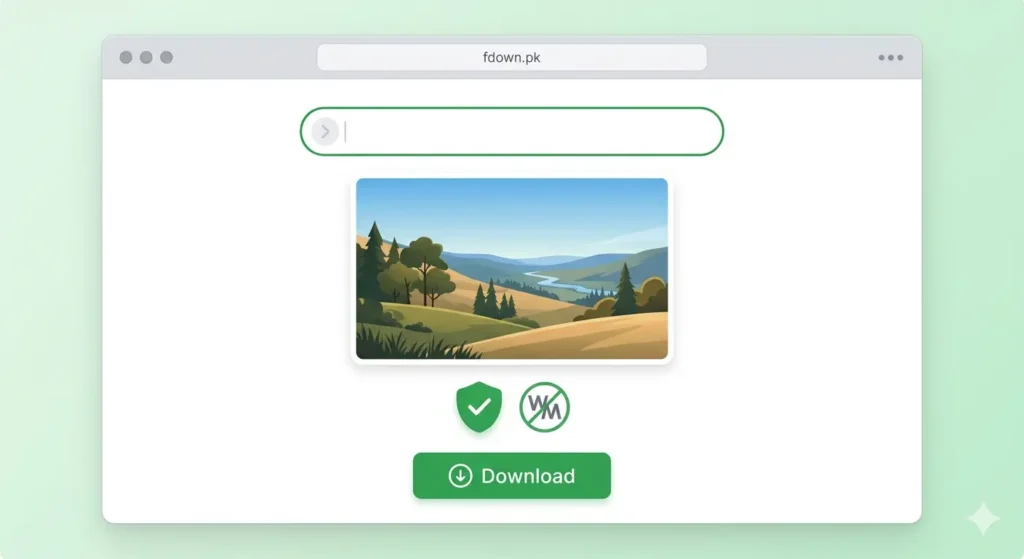
fdown.pk does not add any watermark, logo, branding, or overlay to any video you download. What you get is the exact original video file as it exists on Facebook’s servers. This applies to:
-
HD and SD downloads
-
Facebook Reels
-
Facebook Stories
-
Live Replays
How to Download Without Watermarks (Step-by-Step)
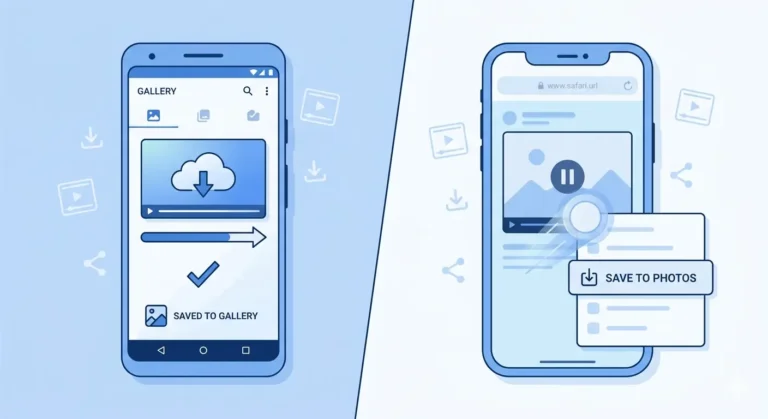
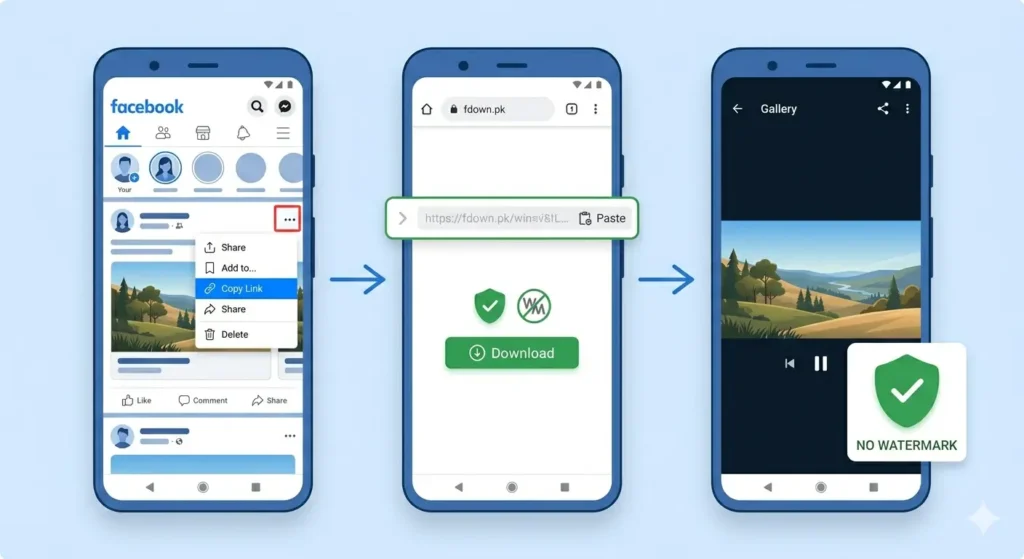
1. On Android
-
Find the Video: Open the Facebook app.
-
Copy Link: Tap the three dots (…) on the post and select Copy Link.
-
Visit fdown.pk: Open Chrome and go to the site.
-
Paste & Download: Paste your link, hit download, and choose HD Download for the cleanest, highest-quality result.
2. On iPhone
-
Copy Link: Use the three dots (…) menu in the Facebook app.
-
Use Safari: Open Safari (this works best for iOS downloads) and go to fdown.pk.
-
Download: Paste the link and tap download.
-
Save to Gallery: Once the video opens in a new tab, long-press the video and select Save to Photos.
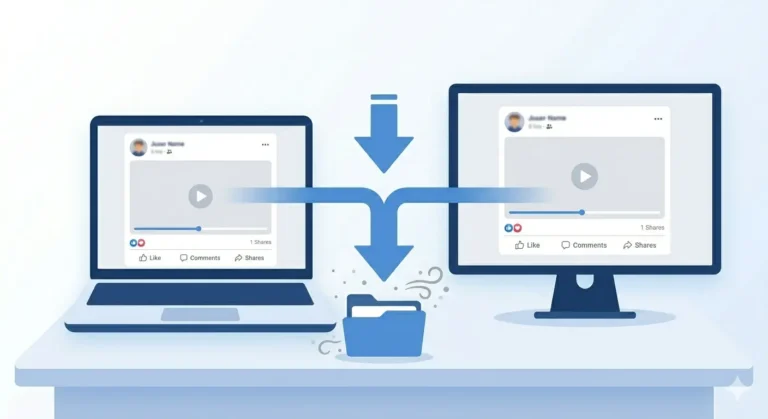
3. On PC/Desktop
-
Copy Link: Right-click the video or use the three-dot menu to copy the URL.
-
Download: Go to fdown.pk, paste the link (Ctrl+V), and click Download.
-
Save: Choose the HD option to save a clean MP4 directly to your computer.
How to Remove a Watermark From an Existing Video
If you already have a video with an annoying watermark, here are three ways to fix it:
-
Option 1: Re-Download (Recommended) The easiest way is to go back to the original Facebook post and use fdown.pk to get a fresh, clean version.
-
Option 2: Crop the Frame Use free apps like CapCut (Mobile) or Clipchamp (Windows) to crop the edges of the video where the watermark is located.
-
Option 3: AI Watermark Removers Tools like media.io or apowersoft.com can use AI to “smudge” out static logos, though results can vary.
Frequently Asked Questions
Does Facebook itself add watermarks to videos?
No. However, if you use the built-in “Share” button to send a Facebook Reel to another app, Facebook may add a Reels logo. Downloading via fdown.pk avoids this entirely.
Why do some downloader apps add watermarks?
It is a business model. They provide a “free” version with a watermark and ask you to pay for a “Premium” version to remove it. fdown.pk is always free and never adds watermarks.
Is the watermark-free download in HD?
Yes. When you choose the HD Download option on fdown.pk, you get the highest resolution available from the original post without any added overlays.
Final Thoughts
Downloading Facebook videos without a watermark isn’t a “trick” it’s simply about choosing the right service. By using fdown.pk, you bypass the logos and branding added by other apps, leaving you with a crisp, original MP4 file.
Next time you need a clean video for your collection, just copy the link, paste it into fdown.pk, and enjoy your watermark-free content!