How to Save Facebook Videos on iPhone Without Any App (Step-by-Step)
If you have been trying to save a Facebook video on your iPhone and failing, you are not alone. iPhone users constantly run into this problem because Apple’s iOS system handles downloads very differently from Android.
Facebook does not offer a built-in download button for videos. And on iPhone, even when you try to save something from a browser, it often ends up in the wrong place or doesn’t save at all.
But here is the thing you do not need to install any app to get this done. No third-party app, no complicated settings, no jailbreak required.
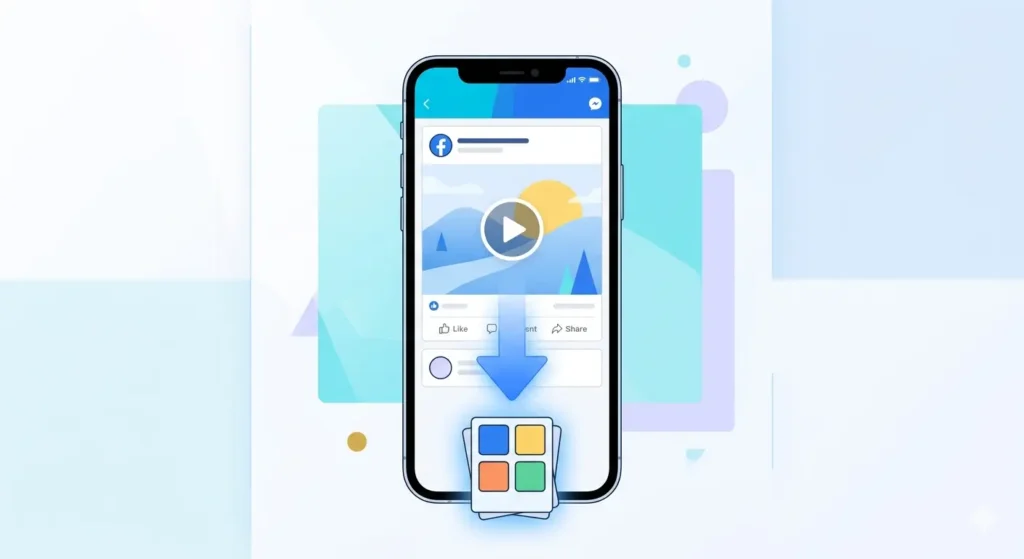
In this guide, I will show you the simplest and fastest way to download any Facebook video directly to your iPhone camera roll completely free.
What You Need
Before we start, make sure you have these ready:
-
An iPhone: Works on iPhone 6 and above, any iOS version.
-
Safari or Chrome browser on your iPhone.
-
The Facebook video link you want to download.
-
A stable internet connection.
No downloads, no sign-ups, no payments. Just your phone and a browser.
Step-by-Step: How to Download Facebook Videos on iPhone
Follow these steps carefully and your video will be saved to your camera roll in less than a minute.
Step 1: Open Facebook and Find Your Video
Open the Facebook app on your iPhone and find the video you want to save. It can be a regular video post, a Reel, or a video from a Facebook page or group. Tap on the video to open it fully before copying the link.
Step 2: Copy the Video Link
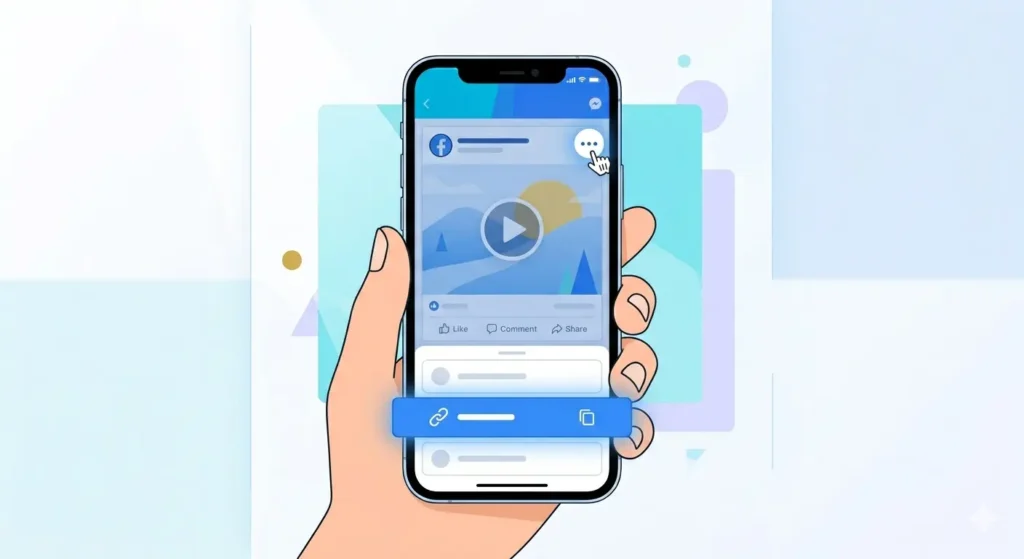
This is the key step. Here is exactly how to do it on iPhone:
-
Tap the three dots (…) icon at the top right of the video post.
-
A menu will slide up from the bottom.
-
Tap “Copy Link”.
-
The video link is now copied to your clipboard.
Step 3: Open Safari and Go to fdown.pk
Now close Facebook and open Safari on your iPhone. Safari works best for downloading videos on iOS. Type fdown.pk in the address bar and open the website.
Step 4: Paste the Link and Tap Download
-
Tap on the input box on fdown.pk.
-
Long press and tap Paste.
-
Tap the blue Download button.
-
Wait a few seconds while the site processes your video.
-
You will see HD and SD download options appear.
Step 5: Save the Video to iPhone Camera Roll
This step is slightly different on iPhone. Follow this carefully:
-
Tap on HD Download or SD Download.
-
The video will open in a new Safari tab and start playing.
-
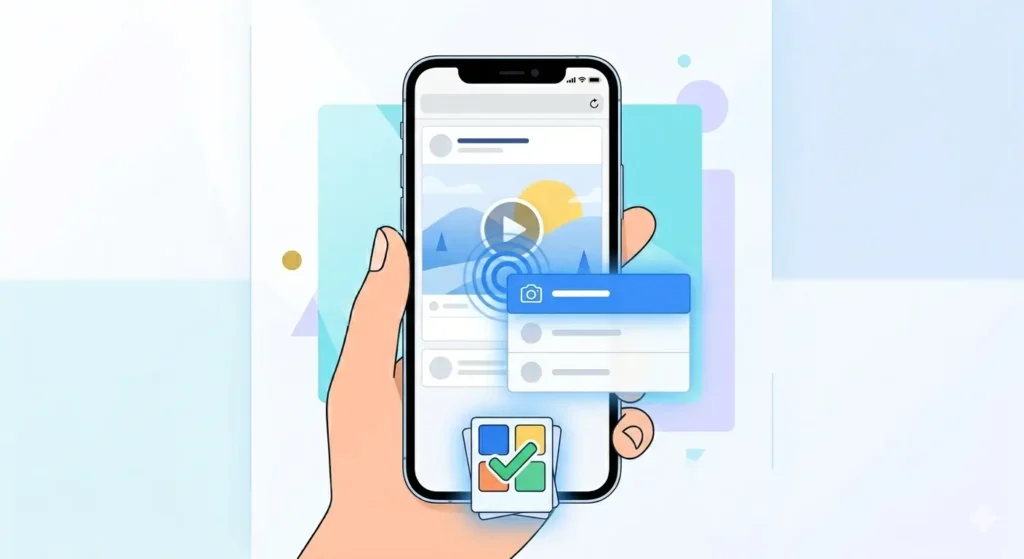
Now long press on the video while it is playing.
-
A menu will appear tap “Save to Photos”.
Open your Photos app and check your Facebook video will be right there!
Video Not Saving to Camera Roll? Try This
Sometimes on iPhone, the “Save to Photos” option does not appear. Here is how to fix it:
-
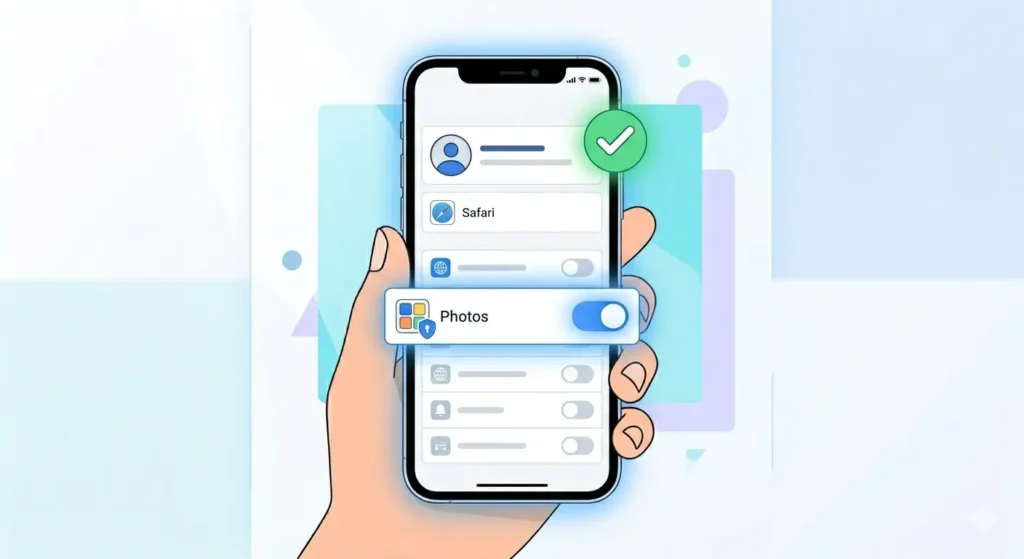
Fix 1: Give Safari Permission Go to Settings → Safari → Photos and make sure it is set to “Allow”.
-
Fix 2: Use the Share Button If long press doesn’t work, tap the Share button (box with upward arrow) at the bottom of Safari and select “Save Video”.
-
Fix 3: Check Storage If your iPhone storage is full, videos won’t save. Free up space in Settings → General → iPhone Storage.
HD or SD Which Should You Pick?
Frequently Asked Questions (FAQ)
Can I download Facebook videos on iPhone for free?
Yes, completely free. fdown.pk does not charge anything or require subscriptions.
Do I need to install any app?
No. This is a web-based method that works directly in Safari.
Where do the videos go?
When you select “Save to Photos”, the video goes directly into your Photos app under the “Recents” album.
Does this work for Facebook Reels?
Yes! The process is exactly the same for Reels just copy the link and paste it into the downloader.
Final Thoughts
Saving Facebook videos on iPhone might seem tricky at first, but with fdown.pk, it’s a breeze. You don’t need to clutter your phone with extra apps or pay for “pro” features. Just copy, paste, and save!