How to Share Downloaded Facebook Videos on WhatsApp and Instagram
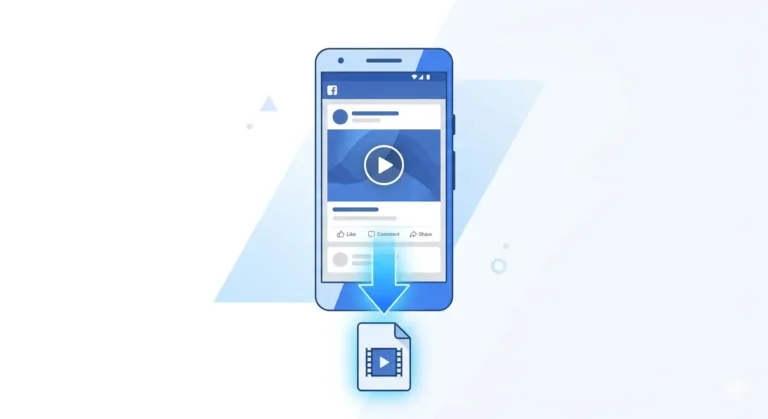
So you downloaded a Facebook video using fdown.pk great. Now what?
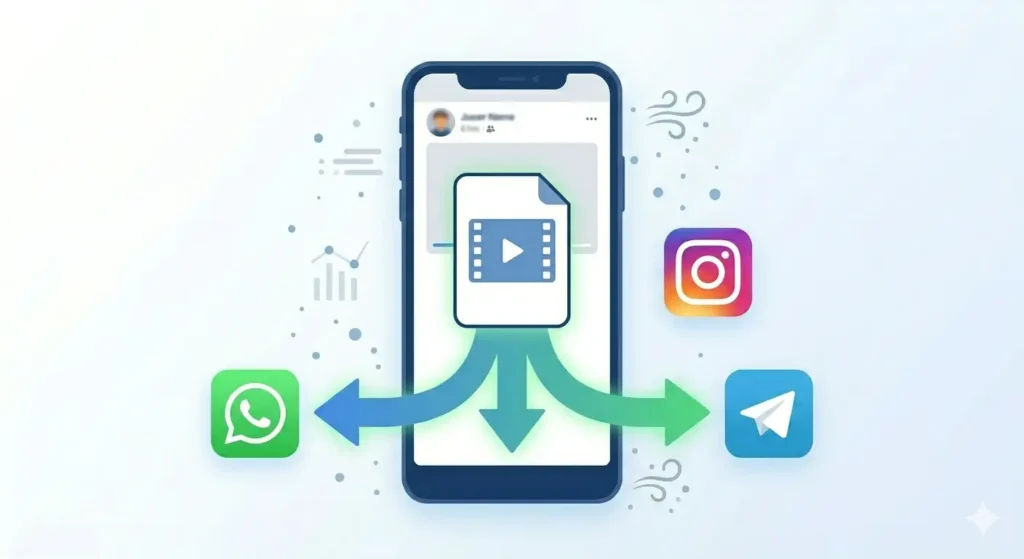
Most people download Facebook videos for one main reason they want to share them somewhere else. A funny clip for the family WhatsApp group. A motivational reel for an Instagram story. A tutorial video for a friend who is not on Facebook.
The good news is that once a Facebook video is saved to your phone gallery or computer, sharing it anywhere is incredibly simple. WhatsApp, Instagram, Telegram, email all of it takes just a few taps. In this guide, I will walk you through exactly how to share downloaded Facebook videos on WhatsApp and Instagram, on both Android and iPhone, step by step.
Step One Download the Facebook Video First
Before you can share anything, you need the video saved on your device. If you have not done this yet, here is the quick version:
-
Find the Facebook video you want to share.
-
Tap the three dots (…) menu on the post and tap Copy Link.
-
Open your browser and go to fdown.pk.
-
Paste the link and tap Download.
-
Choose HD or SD and save the video.
Once the video is in your phone gallery or Downloads folder, you are ready to share it.
How to Share a Downloaded Facebook Video on WhatsApp
WhatsApp is where most people want to share videos. Here is how to do it on Android and iPhone.
Sharing on WhatsApp Android
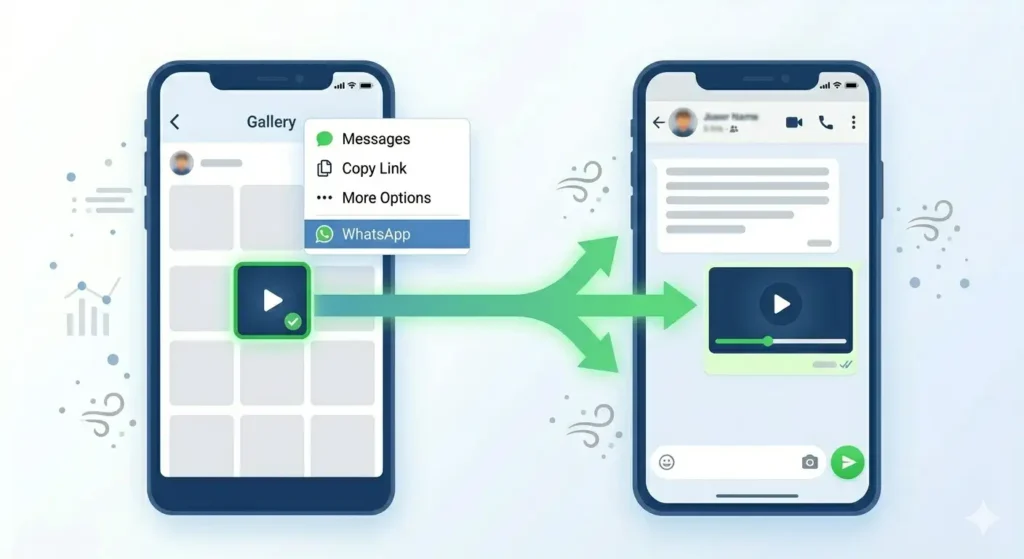
Method 1: Share Directly from Gallery:
-
Open your phone Gallery.
-
Find the downloaded video and long-press to select it.
-
Tap the Share icon and select WhatsApp.
-
Choose the contact or group and tap Send.
Method 2: Share from Inside WhatsApp:
-
Open the WhatsApp chat or group.
-
Tap the attachment icon (paperclip).
-
Select Gallery or Video, find the file, and tap Send.
Sharing on WhatsApp iPhone
-
Open your Photos app and find the video in Camera Roll.
-
Tap the Share button (box with upward arrow) at the bottom left.
-
Tap WhatsApp, choose the contact, and tap Send.
Pro Tip: Send Without Quality Loss (No Compression)
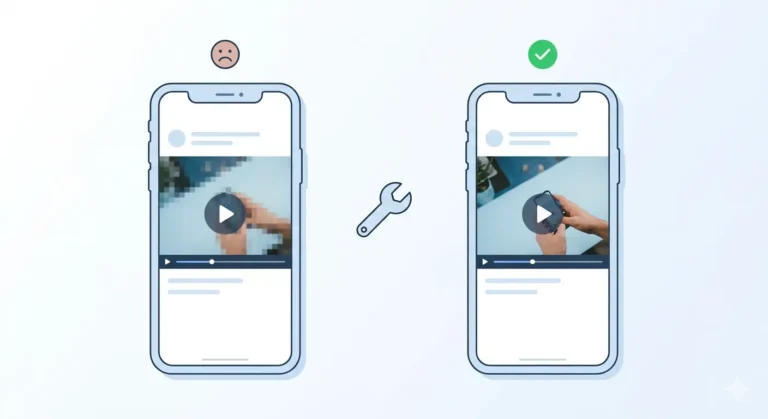
WhatsApp automatically compresses videos, which can make them look blurry. To send in Full HD quality:
-
In the WhatsApp chat, tap the attachment icon.
-
Select Document instead of Gallery.
-
Find your video file in the Downloads folder.
-
Send it. WhatsApp will send the original file without reducing the quality.
How to Share a Downloaded Facebook Video on Instagram
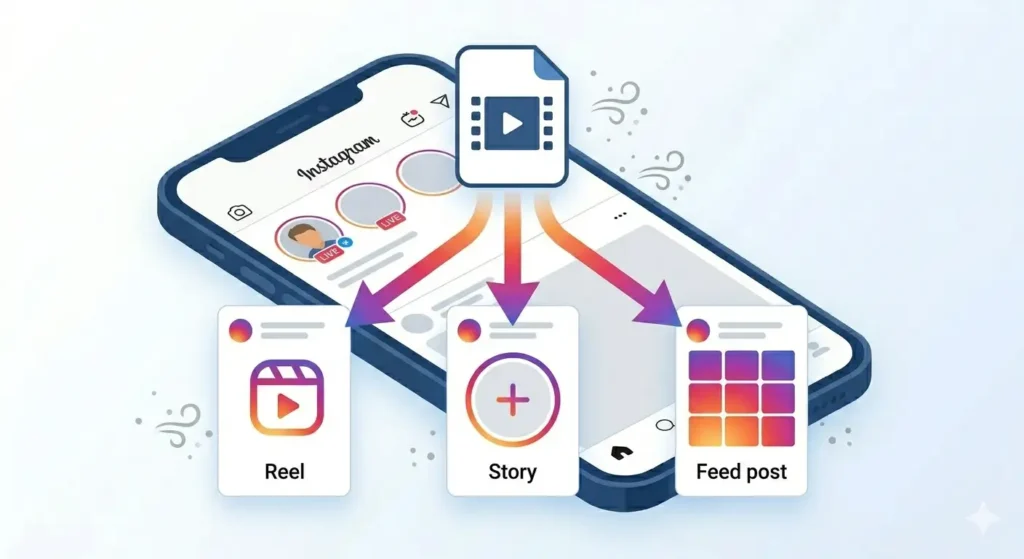
Share as an Instagram Reel
-
Open Instagram and tap the plus (+) icon at the bottom.
-
Select Reel.
-
Tap the Gallery icon at the bottom left and select your video.
-
Trim it if needed (up to 90 seconds), add music, and tap Share.
Share as an Instagram Story
-
Open Instagram and tap Your Story at the top left.
-
Tap the Gallery icon at the bottom left.
-
Select the downloaded video, add stickers if you like, and tap Share.
Share as an Instagram Feed Post
-
Tap the plus (+) icon and select Post.
-
Choose the video from your gallery and tap Next.
-
Write a caption, add hashtags, and tap Share.
HD or SD Which Quality to Choose?
-
Telegram: The best platform for sharing without quality loss. Send as a “File” for original quality.
-
TikTok: Tap the plus (+) icon, select Upload, and pick your video. TikTok supports up to 10-minute uploads.
-
Twitter (X): Compose a post, tap the video icon, and upload. Supports up to 512MB.
Common Problems & Fixes
-
Video Too Large: WhatsApp has a 2GB limit. If it’s too big, download the SD version on fdown.pk instead.
-
Format Errors: Instagram loves MP4. Videos from fdown.pk are already in MP4, so they should work perfectly.
-
Muted Audio: If the video has copyrighted music, Instagram might mute it. Try adding a different song using the Instagram music sticker.
Frequently Asked Questions
Can I post a downloaded video as a Reel?
Yes! Downloaded MP4 videos from fdown.pk work perfectly as Instagram Reels. Just ensure they are under the 90-second limit for best results.
Will Facebook notify the creator if I share their video?
No. Facebook does not send any notification when you download a video using an external tool or share the saved file on other apps.
Final Thoughts
Sharing a Facebook video on WhatsApp or Instagram is a simple process: download with fdown.pk and share from your gallery. Just remember to download HD for Instagram and use the Document method for WhatsApp to keep that crisp quality.
Ready to share? Head over to fdown.pk and save your favorite video right now!